Embed authentication
Read as MarkdownThe Scheduler Embed runs in your users’ browsers, so it can’t hold your application’s credentials. Instead, your server signs a short-lived Embed Token with your application’s Embed Secret, and passes it to the page.
Embed Secrets #
- In your Cronofy Developer Dashboard, go to the “Credentials” section of your application.
- Under “Embedded Scheduler Credentials”, click the “Generate a new embed secret” button.
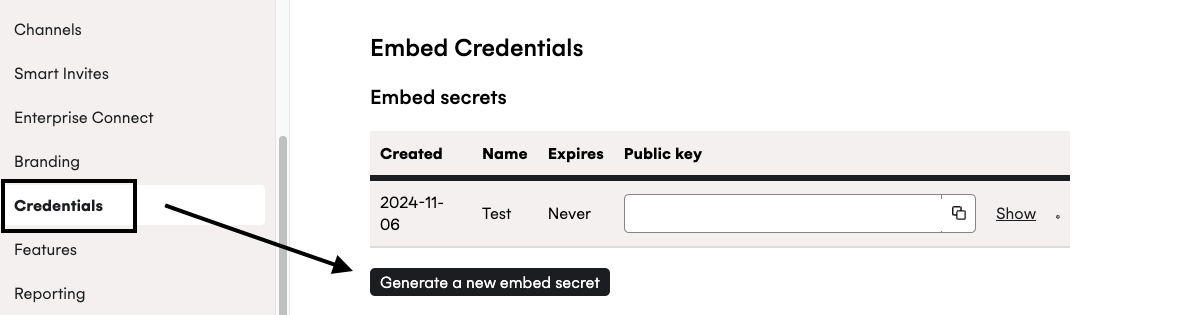
- Store the public key and embed secret in your applications secrets so they can be passed to the function for generating a Embed Tokens when rendering the page.
Embed Tokens #
The Embed Token that is used in your pages is a JWT (JSON Web Token) signed with your embed secret key.
Embed tokens should be hashed with the HS256 algorithm and signed with your Embed Secret, which begins ESK_
Example token generation code #
# Using the 'jwt' gem: https://github.com/jwt/ruby-jwt
# Set the Embed public and secret keys from the Cronofy dashboard
embed_public_key = ENV.fetch("CRONOFY_SCHEDULER_EMBED_PUBLIC_KEY") # Value starting "EMB_"
embed_secret = ENV.fetch("CRONOFY_SCHEDULER_EMBED_SECRET") # Value starting "ESK_"

jwt_payload = {
  iss: embed_public_key,
  iat: Time.now.to_i,
  exp: Time.now.to_i + (60 * 60 * 4),
  aud: "scheduler_embed",
  jti: SecureRandom.uuid,
}

embed_token = JWT.encode(jwt_payload, embed_secret, 'HS256')
// Use the firebase JWT library: https://github.com/firebase/php-jwt
use Firebase\JWT\JWT;
// Set the Embed public and secret keys from the Cronofy dashboard
$embed_public_key = $_ENV["CRONOFY_SCHEDULER_EMBED_PUBLIC_KEY"]; // Value starting "EMB_"
$embed_secret = $_ENV["CRONOFY_SCHEDULER_EMBED_SECRET"]; // Value starting "ESK_"
$jwt_payload = [
"iss" => $embed_public_key,
"iat" => time(),
"exp" => time() + (60 * 60 * 4),
"aud" => "scheduler_embed",
"jti" => uniqid(),
// optional onboarding parameters: https://docs.cronofy.com/developers/embedded-scheduler/onboarding-users/#enhanced-embedded-onboarding-flow
"tenant_id" => "your-customer-id",
"tenant_name" => "Evenitron",
];
$embed_token = JWT::encode($jwt_payload, $embed_secret, "HS256");// NOTE: this must be done on the *server* to prevent the Embed secret being visible by clients.
// Use the auth0 JWT library: https://github.com/auth0/node-jsonwebtoken
const jwt = require("jsonwebtoken");
const crypto = require("crypto");
// Set the Embed public and secret keys from the Cronofy dashboard
const embed_public_key = process.env["CRONOFY_SCHEDULER_EMBED_PUBLIC_KEY"]; // Value starting "EMB_"
const embed_secret = process.env["CRONOFY_SCHEDULER_EMBED_SECRET"]; // Value starting "ESK_"
const timestamp = Date.now() / 1000;
const embed_token = jwt.sign(
{
iss: embed_public_key,
iat: timestamp,
exp: timestamp + (60 * 60 * 4),
aud: "scheduler_embed",
jti: crypto.randomUUID(),
// optional onboarding parameters: https://docs.cronofy.com/developers/embedded-scheduler/onboarding-users/#enhanced-embedded-onboarding-flow
tenant_id: "your-customer-id",
tenant_name: "Evenitron"
},
embed_secret,
{
algorithm: "HS256"
}
);using System;
// dotnet add package System.IdentityModel.Tokens.Jwt
using System.IdentityModel.Tokens.Jwt;
using System.Security.Claims;
using Microsoft.IdentityModel.Tokens;
// Set the Embed public and secret keys from the Cronofy dashboard
var embedPublicKey = "EMB_...";
var embedSecret = "ESK_...";
var claims = new Claim[] {
new Claim("iat", DateTimeOffset.UtcNow.ToUnixTimeSeconds().ToString(), ClaimValueTypes.Integer32),
new Claim("jti", Guid.NewGuid().ToString()),
// optional onboarding parameters: https://docs.cronofy.com/developers/embedded-scheduler/onboarding-users/#enhanced-embedded-onboarding-flow
new Claim("tenant_id", "your-customer-id"),
new Claim("tenant_name", "Evenitron")
};
var key = new SymmetricSecurityKey(System.Text.Encoding.UTF8.GetBytes(embedSecret));
var signingCredentials = new SigningCredentials(key, "HS256");
JwtSecurityToken jwt = new JwtSecurityToken(
issuer: embedPublicKey,
audience: "scheduler_embed",
claims: claims,
expires: DateTime.UtcNow.AddHours(4),
signingCredentials: signingCredentials
);
var signedJwt = new JwtSecurityTokenHandler().WriteToken(jwt);// Using the Auth0 JWT library: https://github.com/auth0/java-jwt
// Takes in the Embed public and secret keys from the Cronofy dashboard
import java.time.Instant;
import java.util.UUID;
import com.auth0.jwt.JWT;
import com.auth0.jwt.algorithms.*;
import com.auth0.jwt.exceptions.*;
/* Inside a class preparing data for your front end, call this and pass the value to your page */
public String generateJWT(String embedPublicKey, String embedSecretKey) {
Algorithm algorithm = Algorithm.HMAC256(embedSecretKey);
String token = JWT.create()
.withIssuer(embedPublicKey)
.withIssuedAt(Instant.now())
.withExpiresAt(Instant.now().plusSeconds(60 * 60 * 4))
.withAudience("scheduler_embed")
.withJWTId(UUID.randomUUID().toString())
// optional onboarding parameters: https://docs.cronofy.com/developers/embedded-scheduler/onboarding-users/#enhanced-embedded-onboarding-flow
.withClaim("tenant_id", "your-customer-id")
.withClaim("tenant_name", "Evenitron")
.sign(algorithm);
return token;
}Payload values #
The following claims should be specified in the payload of your JWT:
iss Required #
Your Embed public key, the value beginningEMB_iat Required #
The time the JWT was issued at, as an integer of seconds since the epoch (1970/01/01). The represented time cannot be in the future.exp Required #
The time the JWT was expires at, as an integer of seconds since epoch (1970/01/01). The represented time must be in the future.This can be used to limit the time a button on your page works without needing a page refresh. The maximum value accepted is 4 hours after being issued.
aud Required #
The audience of the JWT - this should always be the valuescheduler_embedjti Required #
The ID of the JWT - this is a value used to salt the signing of the JWT and prevent replay attacks, and should be unique to each JWT generated. We recommend using a UUID or GUID.tenant_id Optional #
Provide this value to give users an improved onboarding experience. Read more here.tenant_name Optional #
Provide this value to give users an improved onboarding experience. Read more here.organizational_unit_id Optional #
Theorganizational_unit_id your application chose when
provisioning a Managed Organizational Unit,
so the Embed schedules for that Organizational Unit.sub Optional #
Thesub of the Organizational Unit the Embed schedules for, such as
org_16c99459e89a32a08cdb6b2a.Use this or organizational_unit_id. If you give both, they must identify the
same Organizational Unit. Either way, your application must be authorized for
the Organizational Unit, or be an
Internal Application
linked to it.