Calendar Webhooks
Read as MarkdownCalendar Webhooks, sometimes called Push Notifications, provide a mechanism to lazily retrieve information about an account in order to avoid the need for API clients to create polling infrastructure.
Rather than having to frequently check for changes, instead we inform you when changes have occurred so that you can retrieve them.
This enables you to keep your data as fresh as possible whilst using minimal computing resources.
Webhooks are available for all calendar providers, not just those that support them natively.
Example Webhook Request #
POST {CALLBACK_URL_PATH} HTTP/1.1
Host: {CALLBACK_URL_HOST}
Content-Type: application/json; charset=utf-8
Cronofy-HMAC-SHA256: {Base64(HmacSHA256(body_bytes, CLIENT_SECRET))}

{
  "notification": {
    "type": "change",
    "changes_since": "2026-11-11T09:24:16Z"
  },
  "channel": {
    "channel_id": "chn_54cf7c7cb4ad4c1027000001",
    "callback_url": {CALLBACK_URL},
    "filters": {
      "calendar_ids": ["cal_n23kjnwrw2_sakdnawerd3"],
      "only_managed": false
    }
  }
}
Once a notification channel has been created the callback URL specified will receive webhooks for changes to the user’s account and calendars.
These will come in the form of POST requests with a Content-Type of application/json; charset=utf-8.
Request headers #
Cronofy-HMAC-SHA256 #
Can optionally be used to verify that the notification was sent by Cronofy.
This HMAC uses the SHA256 algorithm, keyed with the application's client secret, to generate a Base64 encoded hash of the request body.
When an application has multiple active client secrets, a value is generated for each active secret, separated by commas. For example:
Cronofy-HMAC-SHA256: {HMAC_FROM_SECRET_1},{HMAC_FROM_SECRET_2}
Examples are available in our cronofy/notification-hmac-examples Github repository, and our API libraries include methods to verify this header.
HMACs are generated in the same way for all callback events.Request parameters #
notification.type #
The type of change this notification is for.
There are currently six types of notification but your code should be tolerant of others, by ignoring them, so if more are introduced in future your integration will not fail.
Current types
verificationsent after a channel is created to test that the specified callback URL is validchangesignifies that a change has occurred to the user’s events so you should make a request to fetch those changesprofile_disconnectedsignifies that one or more of the user’s calendar profiles have become disconnected and the user will need to reauthorize the affected account(s).
See Why are my profiles disconnecting from Cronofy? for the reasons this can happen.
Note that this notification will not be triggered until Cronofy attempts to access the profile in question, such as when trying to create an event over the API. It is at this point that we will invalidate the OAuth token and send this notification.
The current state of a users profiles can be found via a call to UserInfo; the users calendar profiles can be found under the["cronofy.data"]["profiles"]key in the response.conferencing_profile_disconnectedsignifies that one or more of the user’s conferencing profiles have become disconnected and the user will need to reauthorize the affected account(s).The current state of a users profiles can be found via a call to UserInfo; the users conferencing profiles can be found under the ["cronofy.data"]["conferencing_profiles"]key in the response.profile_initial_sync_completedsignifies that the initial sync of the user’s calendar events has completed, you may wish to perform an additional sync when receiving this to ensure you have seen all their events. Note that you will not receive this notification if the initial sync completed before the channel was created.gdpr_requestedsignifies that the account has requested that their details are removed from our systems as part of the GDPR right to be forgotten.
notification.changes_since #
The Time that the last change was seen. This will be returned in UTC.
This is only sent as part of a change notification and may be used as the last_modified parameter for a subsequent Read Events request.
channel.channel_id #
The ID of the channel that triggered the notification.
channel.callback_url #
The URL of the channel that triggered the notification.
channel.filters #
Any non-default filters that were specified for the channel.
Expected response #
A successful response must have a response code in the 2xx range and be returned within 5 seconds.
Therefore, anything that takes longer than 5 seconds to respond, or responds with a code not in the 2xx range will be treated as if it has failed.
We will continue to attempt to send the webhook for 24 hours. If no notifications succeed during this period then it is assumed that the channel is no longer valid and so the channel will be closed automatically and no further webhooks will be sent.
Identifying the account #
We recommend you include an identifier in the callback_url, so you know
which account each webhook relates to. So instead of having one URL for all
callbacks like:
https://api.company.com/all_cronofy_callbacks
you would instead set the callback URL to be something like:
https://api.company.com/cronofy_callbacks/{user_id}
Use something non-sensitive as the identifier, like an internal, non-guessable ID.
Testing locally #
Hookdeck #
Hookdeck is a way to test webhooks against a local server. They maintain an official Cronofy source type: you point a notification channel at a Hookdeck source, and their CLI forwards from there to your machine. Every delivery is stored, so you can inspect a payload and replay it against your endpoint.
Ngrok #
Ngrok is your friend when it comes to testing your webhook endpoint. This downloadable software allows you to expose a local server behind a NAT or firewall to the internet.
First step once you’ve downloaded it is to set up the tunnel to your local application. For example this would set up an http tunnel to the default rails server port on your local machine.
ngrok http localhost:3000
You’ll be shown a console with the details of the public URL. For instance, in this example you can use https://0c2ada98.ngrok.io as the root url for your channels.
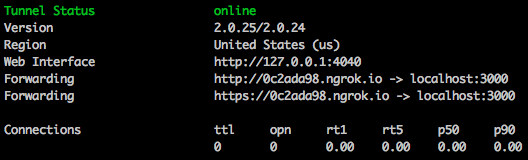
Then create a channel for your account with that URL and the path to your webhook and you can test against Cronofy API live but on your local machine.
You can make use of the test buttons in our developer dashboard to test receiving notifications on your new channel. If you go to your Cronofy application dashboard and click the Channels option on the left, you should be able to see all notification channels for that application along with an indicator as to their current status. If you select an Active channel, you’ll see a set of buttons under the Trigger Push Notifications heading, allowing you to prompt us into sending a dummy version of the notification to that channel’s URL.
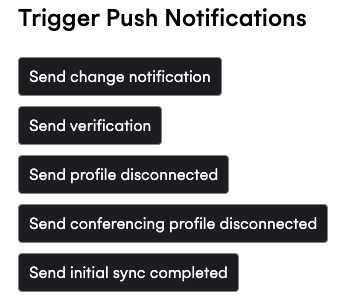
See notification.type for an outline of all notification types.
Another awesome feature of ngrok is the web console that allows you to inspect traffic and replay if necessary. You’ll find it at http://127.0.0.1:4040.
For more advanced options it’s worth reading the ngrok docs.
Certificates #
When sending a webhook, the certificates provided by your application are verified. Common issues, such as self-signed certificates or partial certificate trust chains, will prevent the connection from being established and no webhooks will be sent.
You can check your current SSL certificate rating by testing your callback URL with the SSLLabs SSL Test. A grade of “A” is required for Cronofy to be able to send webhooks.