Free/Busy Calendar Access Mode
The Free/Busy Calendar Access Mode is now available for Google Workspace Enterprise connections.
This allows you to grant more restricted access to your organization’s calendars.
The steps to connect your organization’s calendar follows a similar authorization flow to the steps found here but you will be provided with a different authorization screen instead where you will need to select Free/Busy:
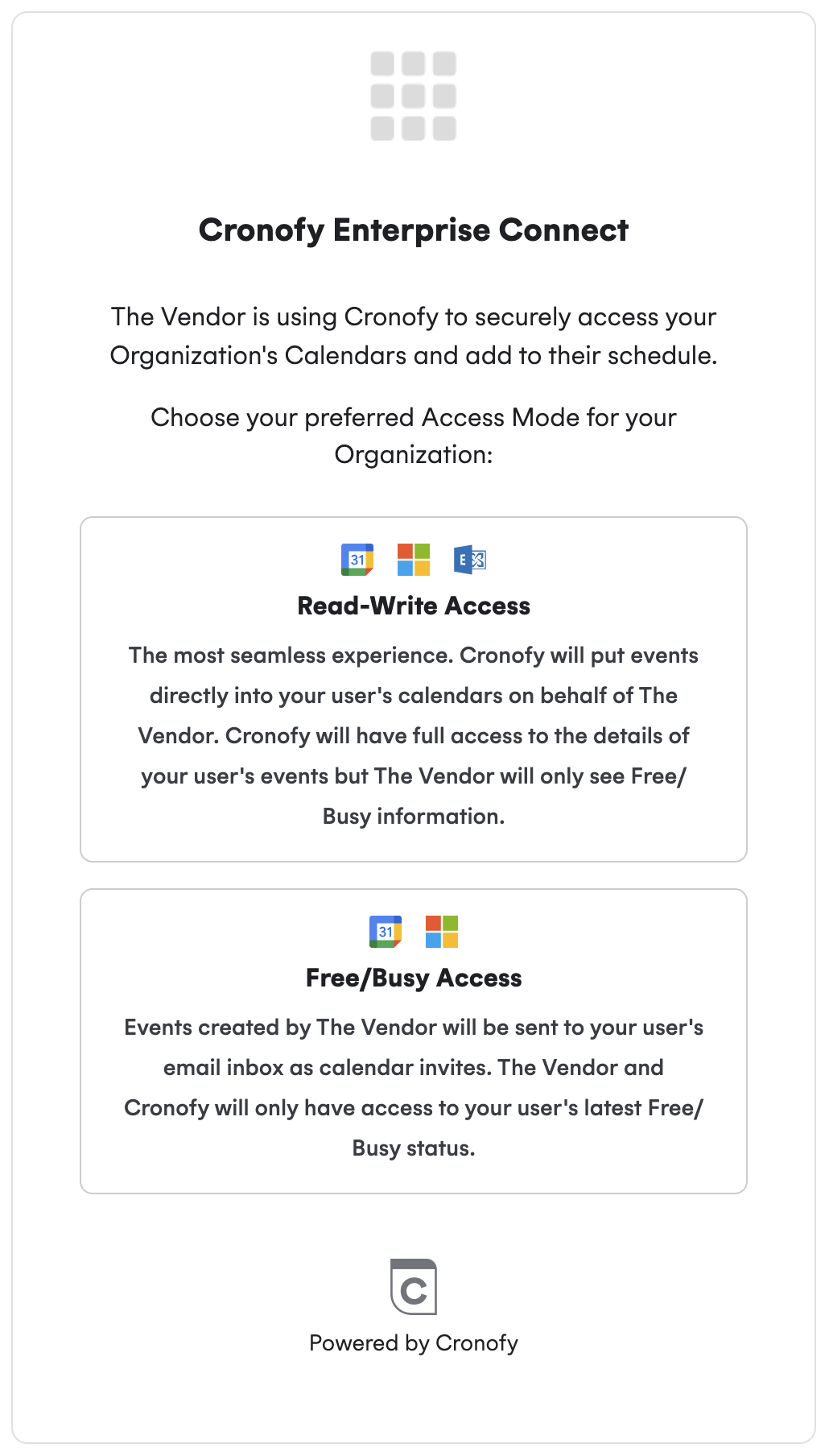
Then from here you will need to select Google:
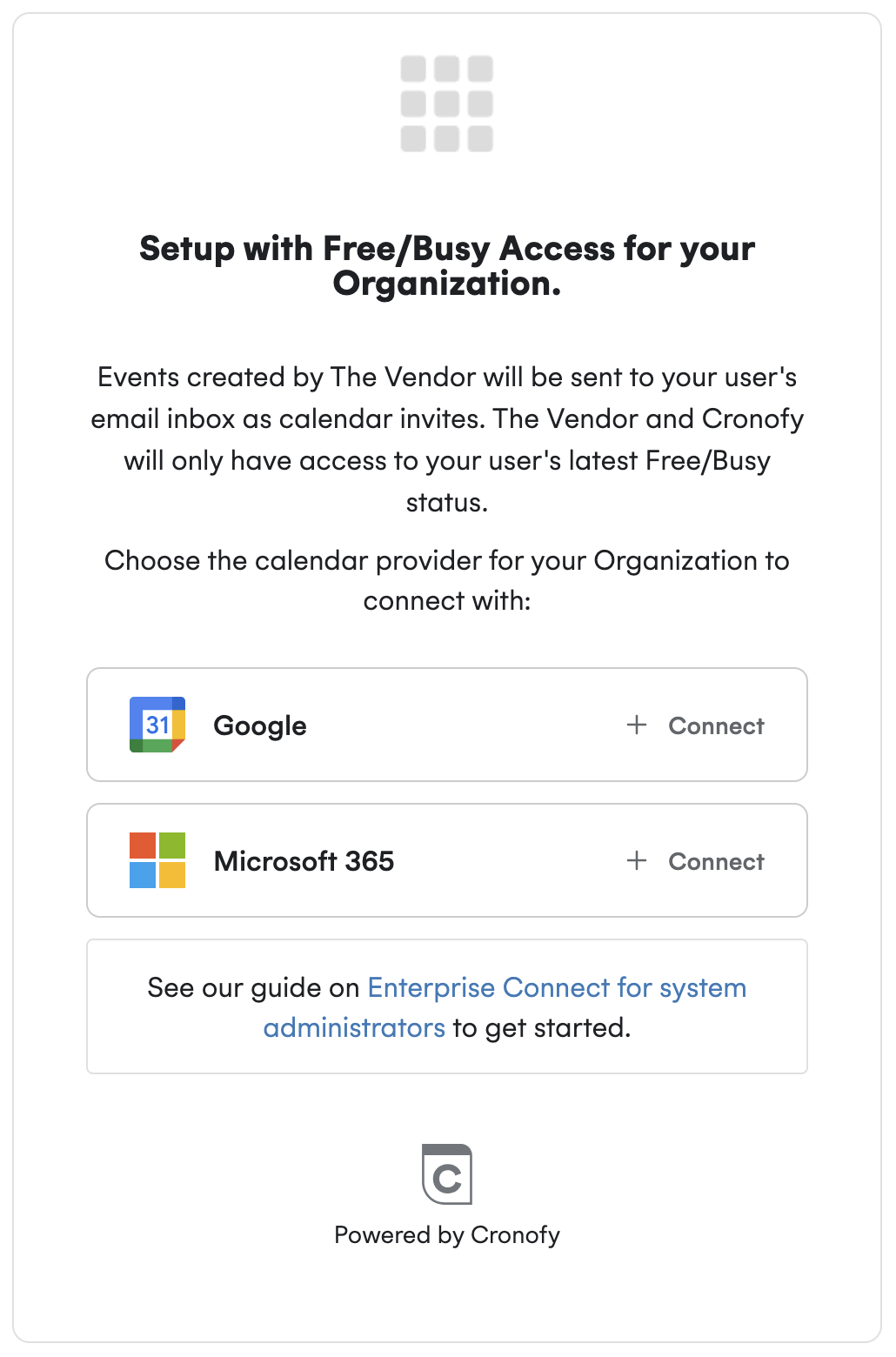
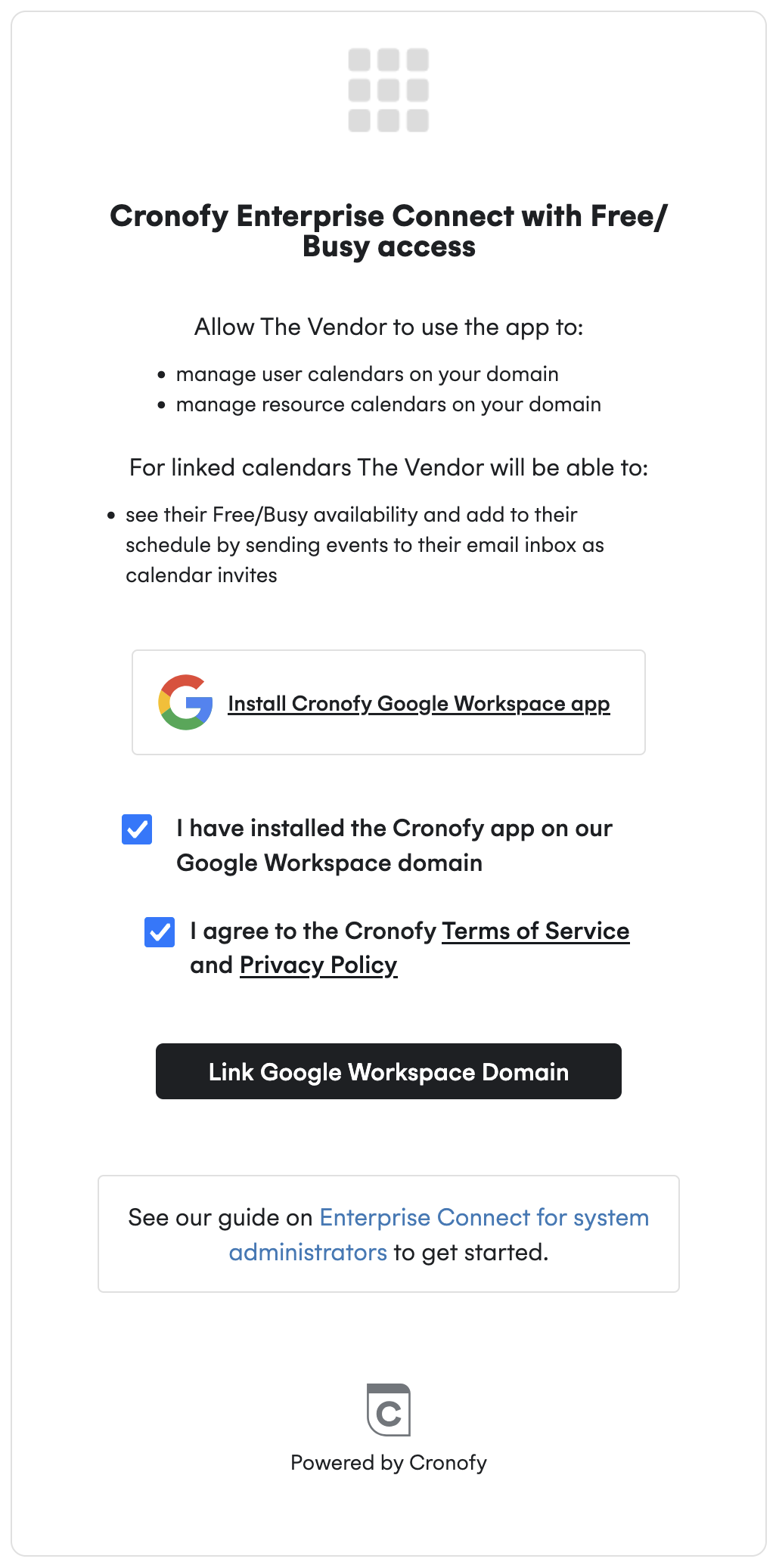
Once this has been selected you will be taken to the following screen.
Here you must click to install the Cronofy Google Workspace app.
Once you have done this, click “Link Google Workspace Domain”.
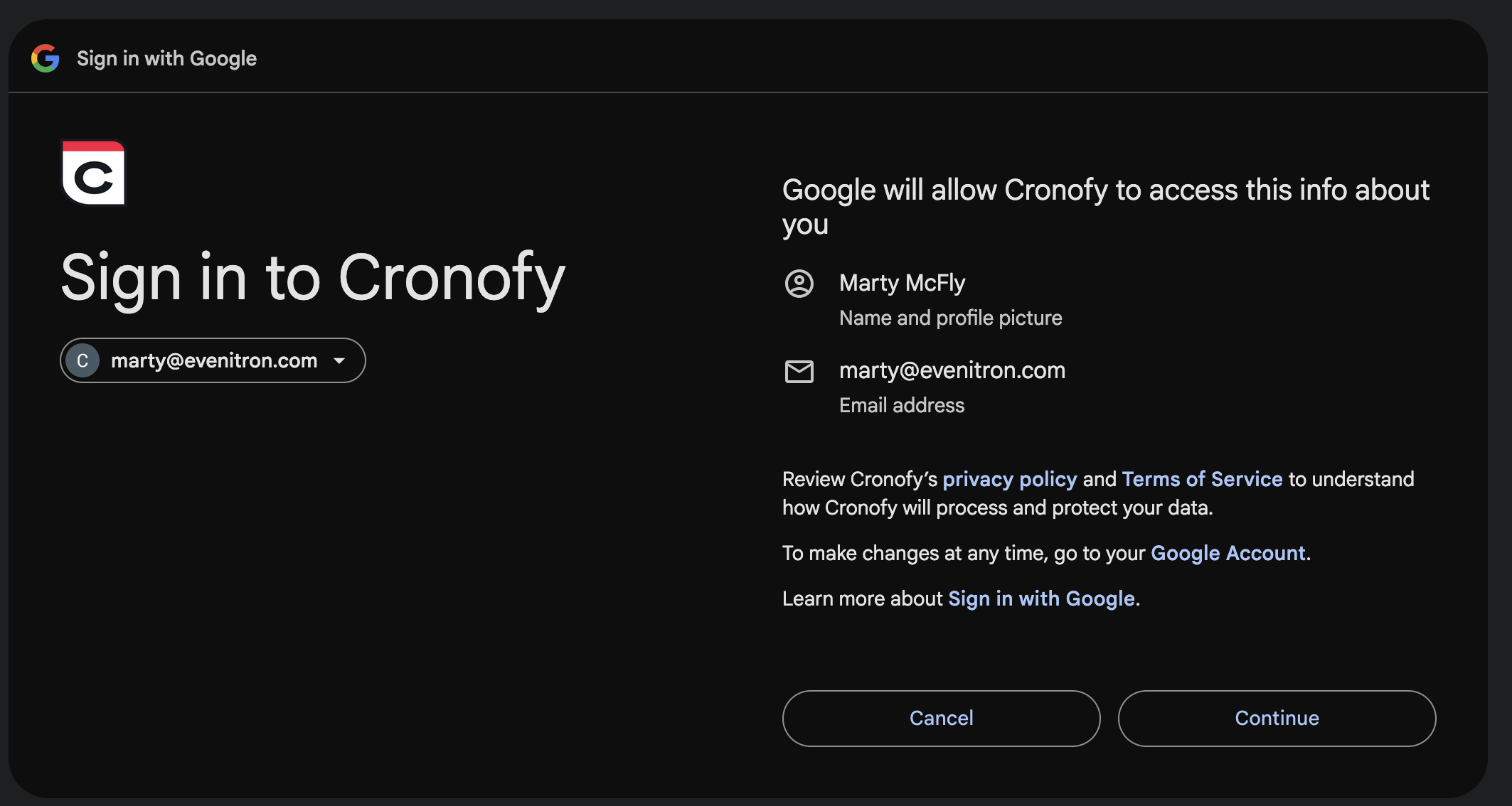
At this point you will be prompted to log in to Google to approve Cronofy’s access to your calendars, ensure your account has admin credentials.
You will see the following screens during the authorization flow:
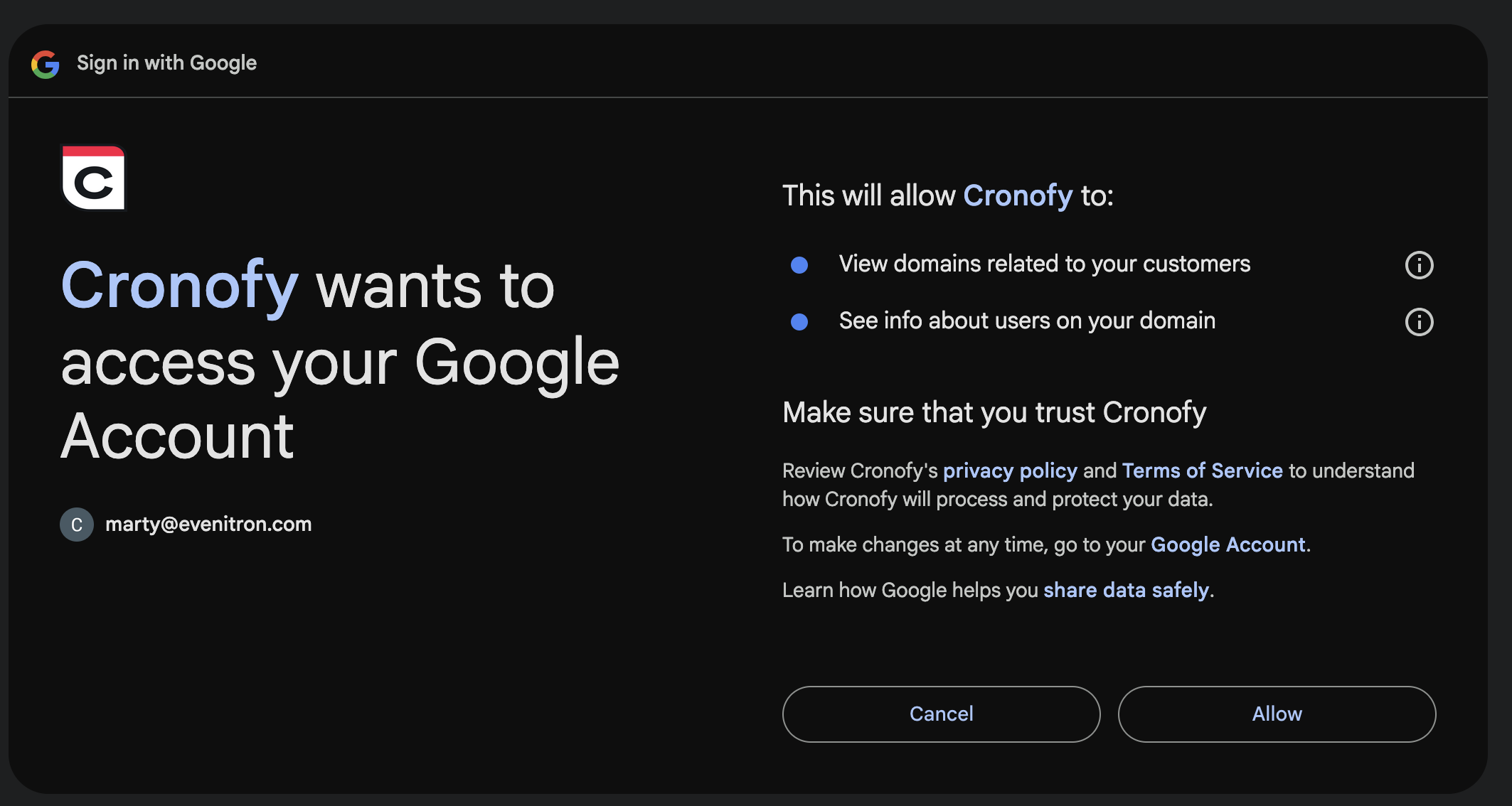
Once complete, you’ll be redirected back to your software vendor’s application where they’ll synchronise your user’s calendars.
If you have any questions regarding Free/Busy Calendar Access Modes or if you are a Cronofy Scheduler customer connecting your organization’s calendars, please contact us at support@cronofy.com.