Configuring Access To Microsoft Teams
Organization administrators are able to set up Cronofy to automatically provision Microsoft Teams as a conferencing option for their users. However, unlike with our other Microsoft Enterprise features, Microsoft require extra permissions to be granted in order for Cronofy to create meetings on behalf of users in your Office 365 tenant. This is not required if you are using a full Read-Write calendar connection with Microsoft Teams enabled.
This requirement is referenced in the permissions section of Microsoft’s API documentation for the create onlineMeeting endpoint
Configuring an ApplicationAccessPolicy #
To configure an application access policy and grant Cronofy the ability to create meetings:
- Start up PowerShell
pwsh
- Connect to Microsoft Teams PowerShell
Connect-MicrosoftTeams
You may need to first install the MicrosoftTeams module. You can learn more about Managing Teams in Powershell:
Install-Module -Name MicrosoftTeams
Check you are connecting to the official Cronofy application. The ID for Cronofy Enterprise for Teams is:
bae01f9c-3537-4b0d-97c4-30d4a6f2c972. If you wish to verify this, you may do so as follows:- If you have already authorized your connection, you may confirm this by visiting the Azure Active Directory Enterprise application portal as seen below.
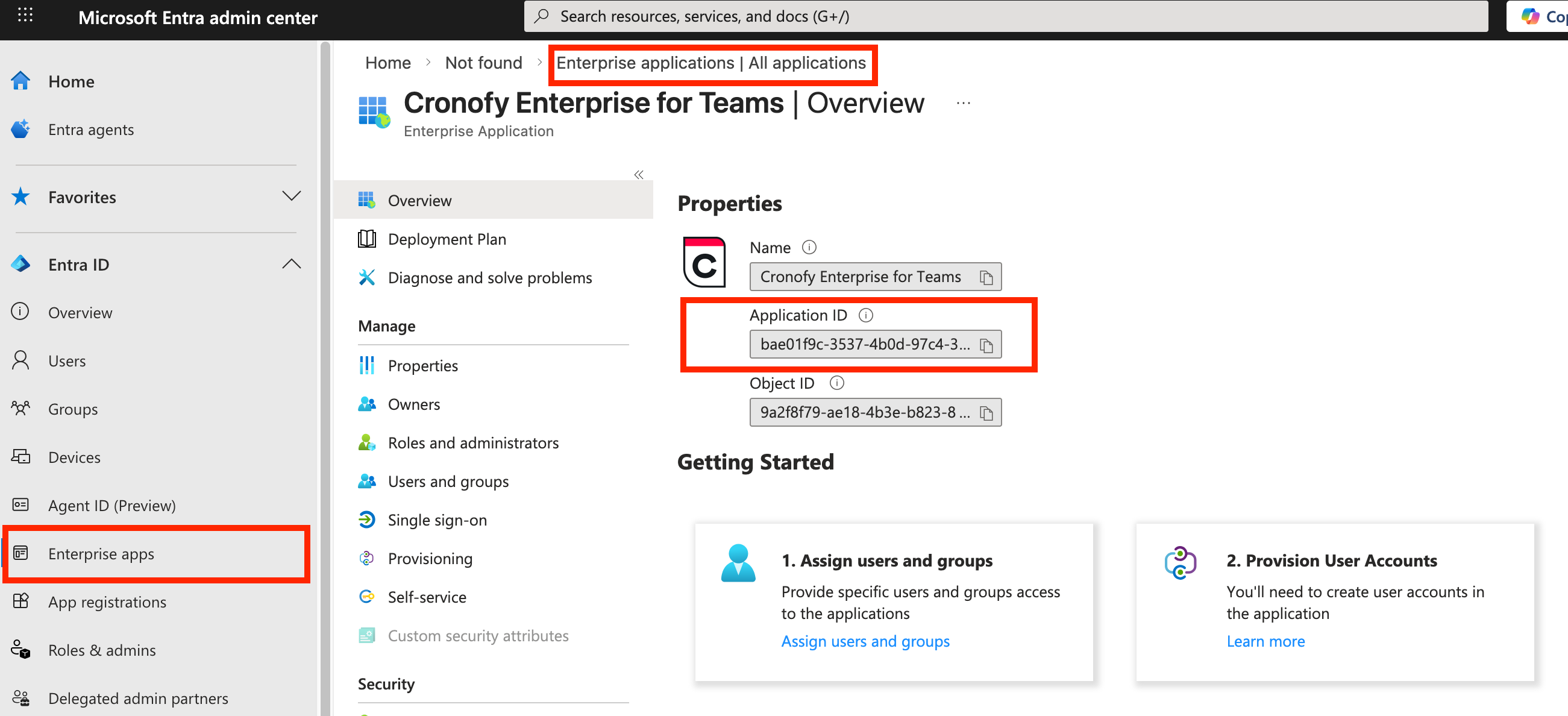
- If you have not yet authorized the connection, you can see the application ID visible in the address bar when initiating (but without completing) the connection:
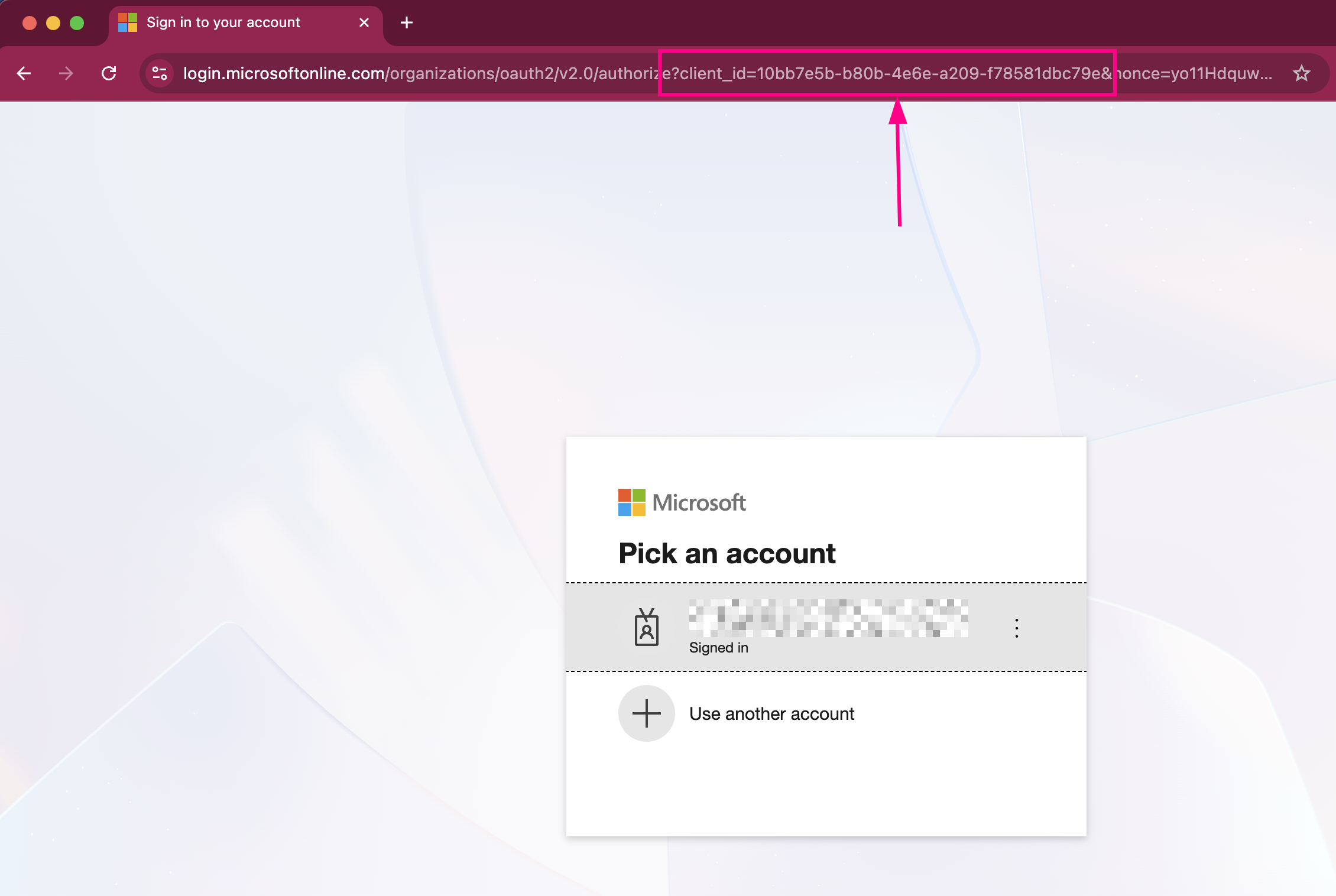
Should you want to verify that no existing policy exists, you can list all policies with the following command:
Get-CsApplicationAccessPolicy
- Create an Application Access Policy with the Cronofy Enterprise for Teams Application ID.
New-CsApplicationAccessPolicy -Identity "CronofyMsTeamsEC" -AppIds "bae01f9c-3537-4b0d-97c4-30d4a6f2c972"
-Identityvalue can be any string you like if you wish to alter this to something more useful for your tenant, “CronofyMsTeamsEC” is just for example.-AppIdsneeds to point to “bae01f9c-3537-4b0d-97c4-30d4a6f2c972”.
- Now you need grant this new Application Access Policy to the users in your tenant. This can be done individually for testing, or you can use the
-Globalparameter to apply to all users within the tenant. Refer to Microsoft’s documentation for a more comprehensive guide on configuring Application Access Policies.
Grant-CsApplicationAccessPolicy -PolicyName "CronofyMsTeamsEC" -Global
- Finally you can verify the new Application Access Policy exists by calling
Get-CsApplicationAccessPolicy
Note: Changes to application access policies can take up to 30 minutes to take effect, based on Microsoft’s documentation.
Additional reading #
For further reading on the mechanism mentioned in this article, please see this documentation from Microsoft.
If you require any further assistance, please contact us at support@cronofy.com.