Limit Cronofy's access by Role-Based Access Control (RBAC) Beta
Read as MarkdownRole-Based Access Control (RBAC) limits Cronofy’s application permissions to a chosen set of user and resource mailboxes, rather than your whole tenant. RBAC is not compatible with the Free/Busy Calendar Access Mode (the “Cronofy Enterprise for Office 365 - Free/Busy” application). Free/Busy connections use the delegated permissions of the service account that authorized the connection, rather than application permissions. RBAC only restricts application permissions, so a role assignment applied to other accounts has no effect on a Free/Busy connection.
Before you start #
- You will need access to Exchange Online PowerShell to create the role assignment.
- You must be a Global Administrator of the Microsoft 365 tenant to complete the connection.
- RBAC is not compatible with the Free/Busy Calendar Access Mode (the “Cronofy Enterprise for Office 365 - Free/Busy” application). Free/Busy connections use the delegated permissions of the administrator who authorized the service account, rather than application permissions. RBAC only restricts application permissions, so a role assignment applied to other accounts has no effect on a Free/Busy connection.
Step 1: Connect Cronofy to your tenant #
Follow the link your software provider gives you and sign in with your Global Administrator account. Do this even if you already have an Enterprise Connect connection — connecting again through that link is what puts you on an RBAC specific connection.
The RBAC setup in Exchange Online is the same either way. The only difference is whether Cronofy already holds tenant-wide permissions that you need to remove:
- If you previously authorized a standard Enterprise Connect connection, Cronofy was granted tenant-wide application permissions at that point, and connecting again does not take them away. RBAC role assignments act in addition to those grants, so you will need to remove them manually in Step 3 before your restriction takes effect.
- For an RBAC specific connection, Cronofy will not request any application permissions, so there will be none to remove. Cronofy has no access to any calendar until you complete the role assignment in Step 2.
If you are unsure which applies to you, complete Step 2 and then check the application’s permissions as described in Step 3.
Step 2: Assign Cronofy a scoped calendar role in Exchange Online #
The purpose of configuring Role Based Access Control is to limit the Calendars.ReadWrite scope of the Cronofy Entra application to a specific set of users.
The process of setting up Role Based Access Control will involve the following steps:
- Creating a Service Principal - This is a representation of the Entra application within your tenant that you wish to limit the access of.
- Creating a Management Scope - This is used to define the set of users you wish to limit the application to based on the properties of these objects.
- Creating a Management Role Assignment - This ties together a principal, role, and custom resource scope of access. This assignment acts as the permissions assignment for a service principal performing a role across a scope.
You can set up Role Based Access Control and limit the scope of Cronofy’s application permissions by following the below steps:
Connect to Exchange Online PowerShell. For details, see Connect to Exchange Online PowerShell
The Application ID is always
10bb7e5b-b80b-4e6e-a209-f78581dbc79e. The Object ID is specific to your tenant; you can find it on the application’s page in the Entra Enterprise applications portal:- Open Enterprise applications and search for the Application ID
10bb7e5b-b80b-4e6e-a209-f78581dbc79e. - Open the matching application and copy its Object ID. You pass this value to
New-ServicePrincipalin the next step.
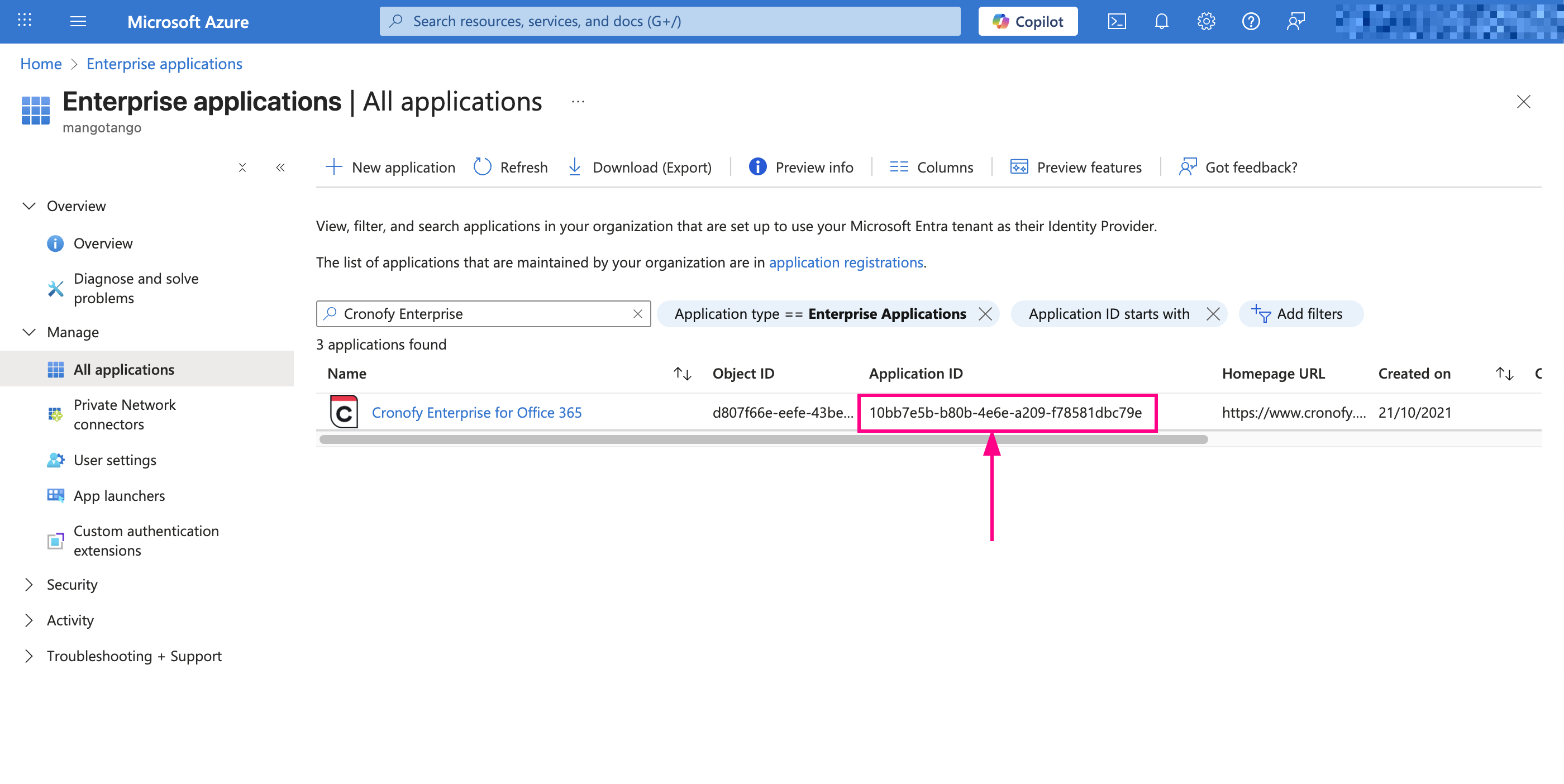
- Open Enterprise applications and search for the Application ID
Create the service principal in Exchange, passing the Application ID and the Object ID from the previous step, and a DisplayName of your choosing:
New-ServicePrincipal -AppId 10bb7e5b-b80b-4e6e-a209-f78581dbc79e -ObjectId <Object Id from Step 2> -DisplayName "Cronofy Calendar Sync"Create a mail-enabled security group whose members are the mailboxes you want Cronofy to access, or use an existing one.
4.1 Create the group if you do not already have one. From the Exchange Online PowerShell session, create a mail-enabled security group and add the user and resource mailboxes you want Cronofy to be able to reach as its members:
New-DistributionGroup -Name "Application Security Group" -Type Security
Add-DistributionGroupMember -Identity "Application Security Group" -Member "user@example.com"
The mailboxes in this group are exactly the set Cronofy will have access to, so add users and resources here as your requirements change.
4.2 You will need the DistinguishedName of the security group in order to create the new Management Scope in the following step. You can get this by running the following command, replacing the argument for Identity:
Get-DistributionGroup -Identity "Application Security Group" | Format-List DistinguishedName4.3 Once you have the DistinguishedName you can then create a new Management Scope by running the following command, replacing the argument for Name and MemberOfGroup:
New-ManagementScope -Name "ApplicationCalendarScope" -RecipientRestrictionFilter {MemberOfGroup -eq 'DISTINGUISHEDNAME'}
Create a New Management Role Assignment for the role ‘Application Calendars.ReadWrite’ associated with the previously created Resource Scope, replacing the argument for CustomResourceScope:
New-ManagementRoleAssignment -App 10bb7e5b-b80b-4e6e-a209-f78581dbc79e -Role "Application Calendars.ReadWrite" -CustomResourceScope "ApplicationCalendarScope"
Step 3: Remove any tenant-wide permissions #
Permissions assigned using RBAC act in addition to grants made in Microsoft Entra ID, so a tenant-wide Calendars.ReadWrite grant will override your role assignment. Microsoft covers this in the FAQ section of their RBAC page.
Skip this step if you have never had a standard Enterprise Connect connection — there will be nothing listed to remove.
Navigate to the Azure Active Directory Enterprise application portal.
Click on the Application “Cronofy Enterprise for Office 365” and under the Security heading on the left hand side click on Permissions.
Look under the heading Admin consent for the application permissions granted to Cronofy:
Calendars.ReadWrite,User.Read.All,Organization.Read.AllandPlace.Read.All.- If any are listed, they were granted by your earlier standard connection. Click the three dots to the right of each in turn, select Revoke Permission, then click ‘Yes, revoke’.
- If none are listed, you connected for the first time via the RBAC specific connection and Cronofy was never granted them. There is nothing to remove.
Step 4: Test the scope #
You can test the authorisation to see whether specific users show as being part of the scope you have just defined by running the below command, replacing the argument for Resource:
Test-ServicePrincipalAuthorization -Identity 10bb7e5b-b80b-4e6e-a209-f78581dbc79e -Resource "EMAIL ADDRESS"
The result will include the parameter InScope which will return either True or False, where True indicates Cronofy has access to their calendar data.
Microsoft caching #
Exchange Online does not re-evaluate the role assignment on every request; it caches whether the Cronofy application may reach a given mailbox. The cache can persist anywhere between 30 minutes to 2 hours. Microsoft documents this limitation here:
- Adding a mailbox to the scope takes time to take effect. After you add a user or resource mailbox to the security group behind your management scope, there is a delay before Cronofy can read it. During that window it will not sync even though the assignment is correct.
- Removing a mailbox from the scope also takes time. Cronofy’s access to a mailbox can persist briefly after you remove it from the scope, until the cached decision expires.
A Test-ServicePrincipalAuthorization result of InScope : True for a mailbox that still will not sync usually means Microsoft’s cache has not yet caught up; allow time and check again before treating it as a fault.