Migrating a Free/Busy EWS connection to Graph API
Read as MarkdownMicrosoft are deprecating Exchange Web Services (EWS) for Exchange Online, disabling it for Organisations in October 2026 and fully removing it in April 2027.
If your organization’s calendars are connected in Free/Busy access mode through an Exchange Service Account, that connection needs to move to Graph API before October. All you need to do is connect a new Graph Service Account, and we will migrate your existing users across to it.
Before you connect #
The account you sign in with becomes the service account for the new connection. Unlike the Exchange Service Account it replaces, it needs:
- An Exchange Online mailbox. Free/Busy connections read your users’ schedules through the service account’s own calendar, so the account must have a real mailbox. Any Microsoft 365 license that includes Exchange Online is sufficient — for example E3, E5 or F3.
- A standard user role. The service account does not need to be a Global Administrator, or hold any other admin role.
You do not need to grant the AvailabilityOnly mailbox folder permissions that your Exchange Service Account relies on. Cronofy reads availability through Microsoft’s getSchedule API, which returns whatever each user’s calendar permissions already expose to the service account.
The Graph Free/Busy application is separate from the Exchange application your tenant consented to previously. The first sign-in may show a one-time permissions prompt, or a “Need admin approval” message if your tenant restricts user consent. See Administrator involvement for how an administrator grants this consent.
We recommend using a dedicated account rather than a named individual’s, so that the connection isn’t affected if that person leaves the organization.
How to migrate your EWS application: #
Your IT Admin will need to migrate your existing EWS connection to use the new Graph API connector. This be can done using our Migrate from EWS to Graph API Flow. This will create a new Graph Service Account for your tenant which will ensure your existing services connected through Cronofy continue to work. To do this:
In order to log in to the existing EWS service account, select the relevant data center link below:
- https://app.cronofy.com/enterprise_connect/authorizations
- https://app-au.cronofy.com/enterprise_connect/authorizations
- https://app-ca.cronofy.com/enterprise_connect/authorizations
- https://app-de.cronofy.com/enterprise_connect/authorizations
- https://app-sg.cronofy.com/enterprise_connect/authorizations
- https://app-uk.cronofy.com/enterprise_connect/authorizations
Select the ‘Office 365’ option, then at the bottom of the next page select ‘Login with an Exchange Service Account’. Log in using the existing EWS service account credentials.
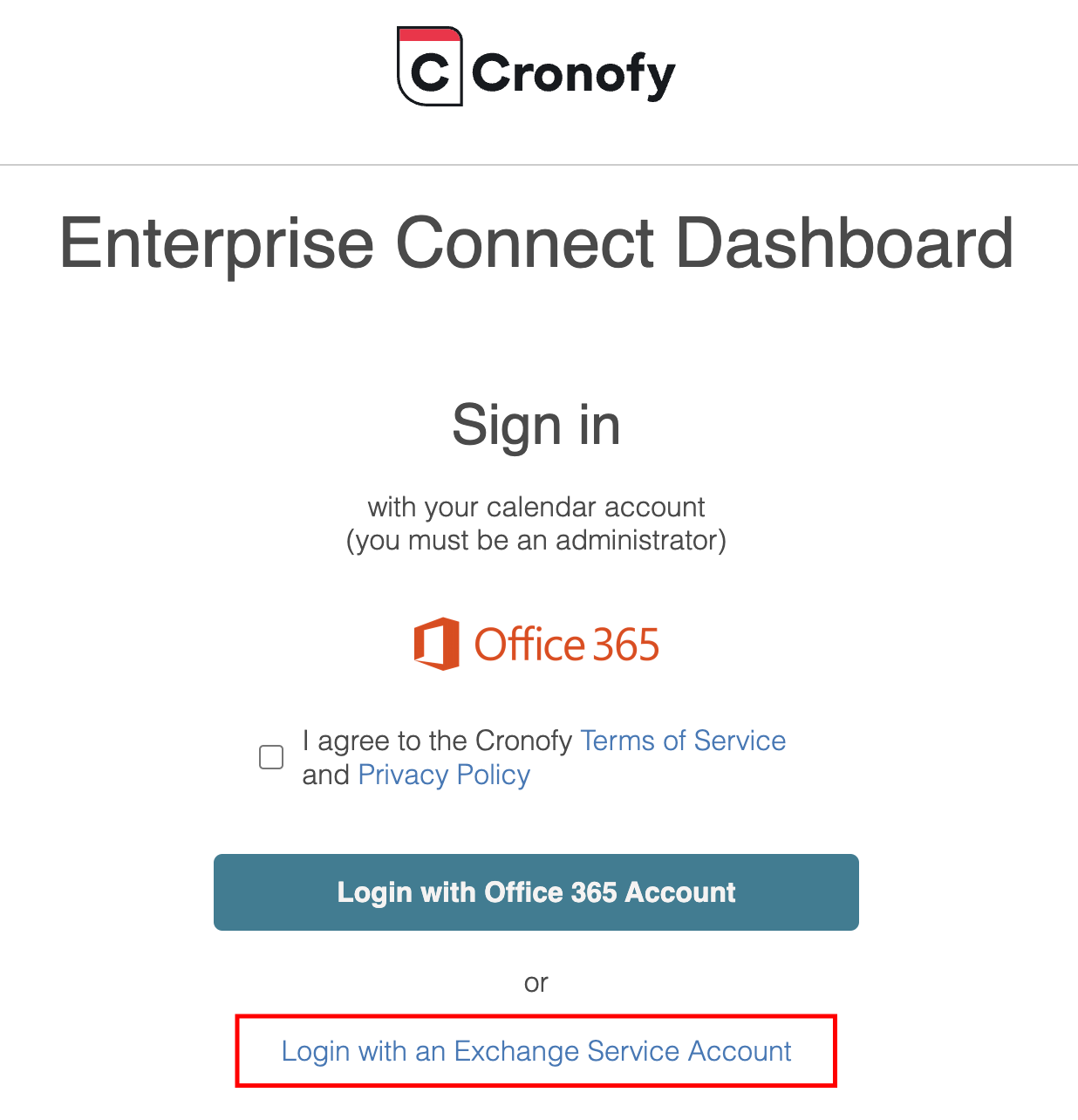
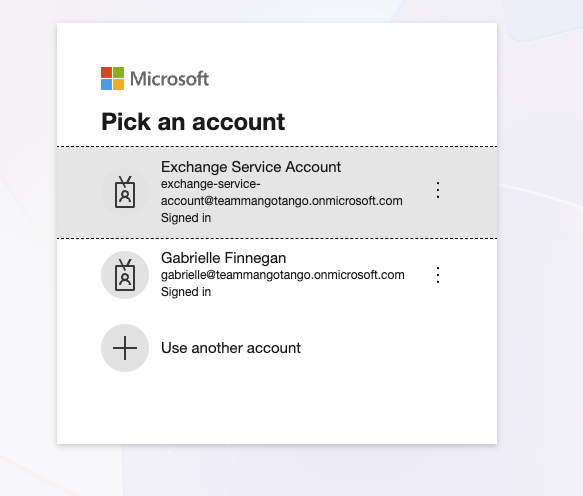
If you have a pending migration to Graph API, you will see the ‘Migrate to Graph API’ button.
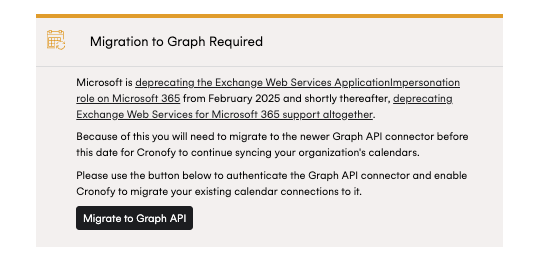
Once clicked, you will see a page with a button ‘Connect Graph Free/Busy Service Account’ to start the migration flow. Sign in as the delegate user that should be used to read free/busy availability.
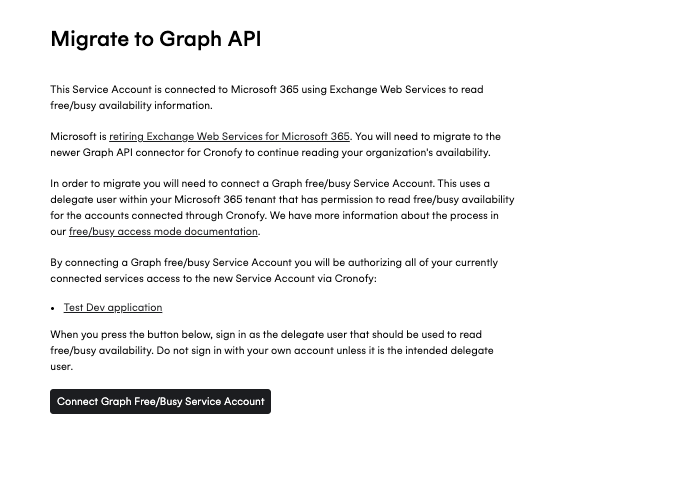
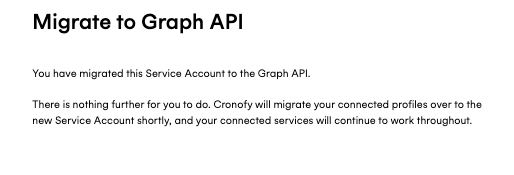
Once successfully migrated you will see a message stating ‘Successfully connected Graph Service Account’, and the page will confirm there is nothing further for you to do.
What happens to your users #
Once the Graph Service Account is connected, we will migrate the users authorized through your existing Exchange Service Account across to it. There is nothing for those users to do, and no action needed from you.
If there are any users we are unable to migrate, we will get in touch with a report of the accounts affected and what is needed to resolve them.
Contact Us #
If you require assistance with any of the above, please reach out to our support team at support@cronofy.com or click the support widget on this page.