Limit Cronofy's access
Read as MarkdownCronofy’s Individual Connect flow allows an end-user to connect their own Office 365 calendar via the Cronofy for Office 365 application (Application ID f573e3d3-ea9c-4d8d-9d8f-20107b8cedbd). By default, once this application has been registered in your Office 365 tenant, this allows your users in the organization to authorize their calendar through your integrator’s application.
However, you can restrict which users are able to complete the Individual Connect authorization flow by requiring user assignment for the application within Microsoft Entra ID, and then assigning only the specific users or groups who should be allowed to connect their calendars.
Configuring users and groups #
Before you can restrict access, the Cronofy for Office 365 application must exist as an Enterprise Application within your tenant.
To register and approve the application within your tenant before any user connects their calendar, ask your integrator for an admin consent link. See our guide on ‘Need admin approval’ errors for more information, or you can contact support@cronofy.com directly confirming which integrator you’re connecting to and we can provide you with the admin consent link.
Sign in to the Microsoft Entra admin center as a Global Administrator (or another role with permission to manage enterprise applications), and navigate to Entra ID > Enterprise Applications >.
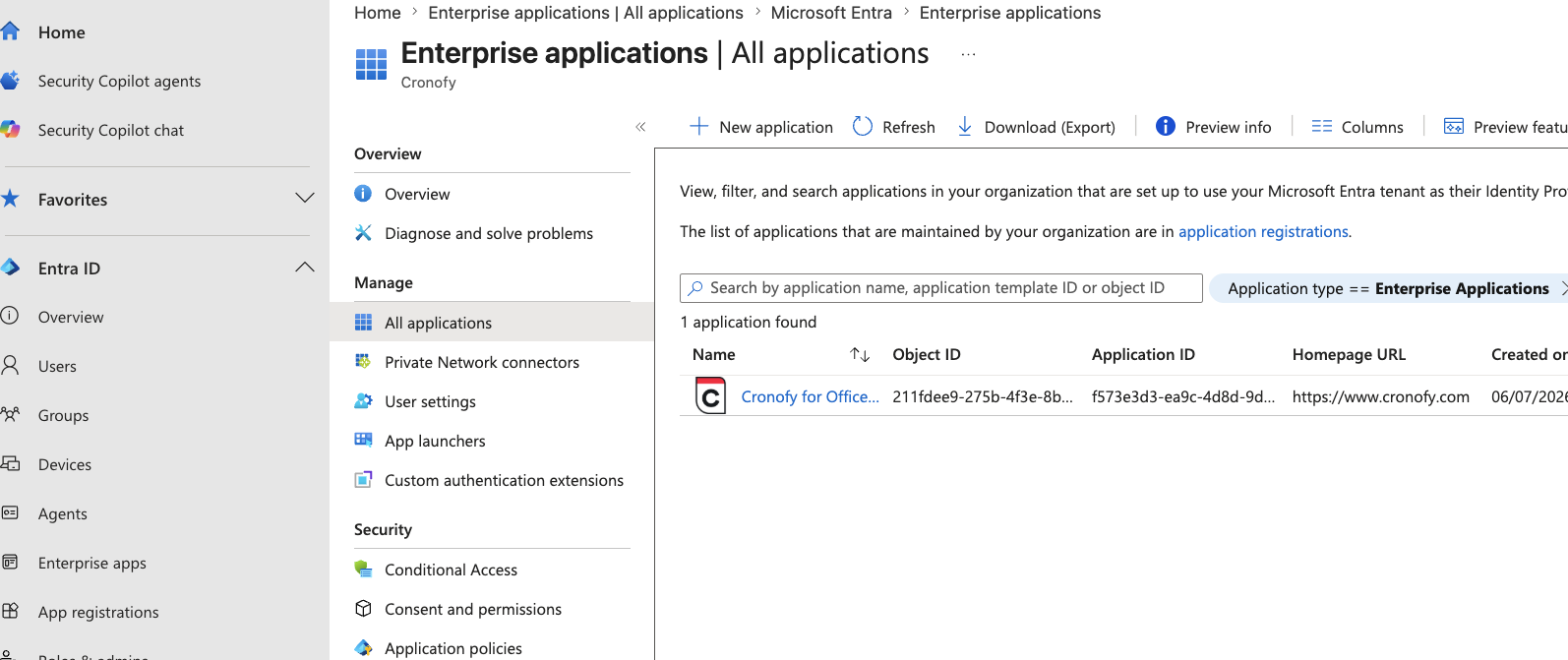
Find and select the application named Cronofy for Office 365 (Application ID
f573e3d3-ea9c-4d8d-9d8f-20107b8cedbd).From the application’s page, go to Manage > Properties.
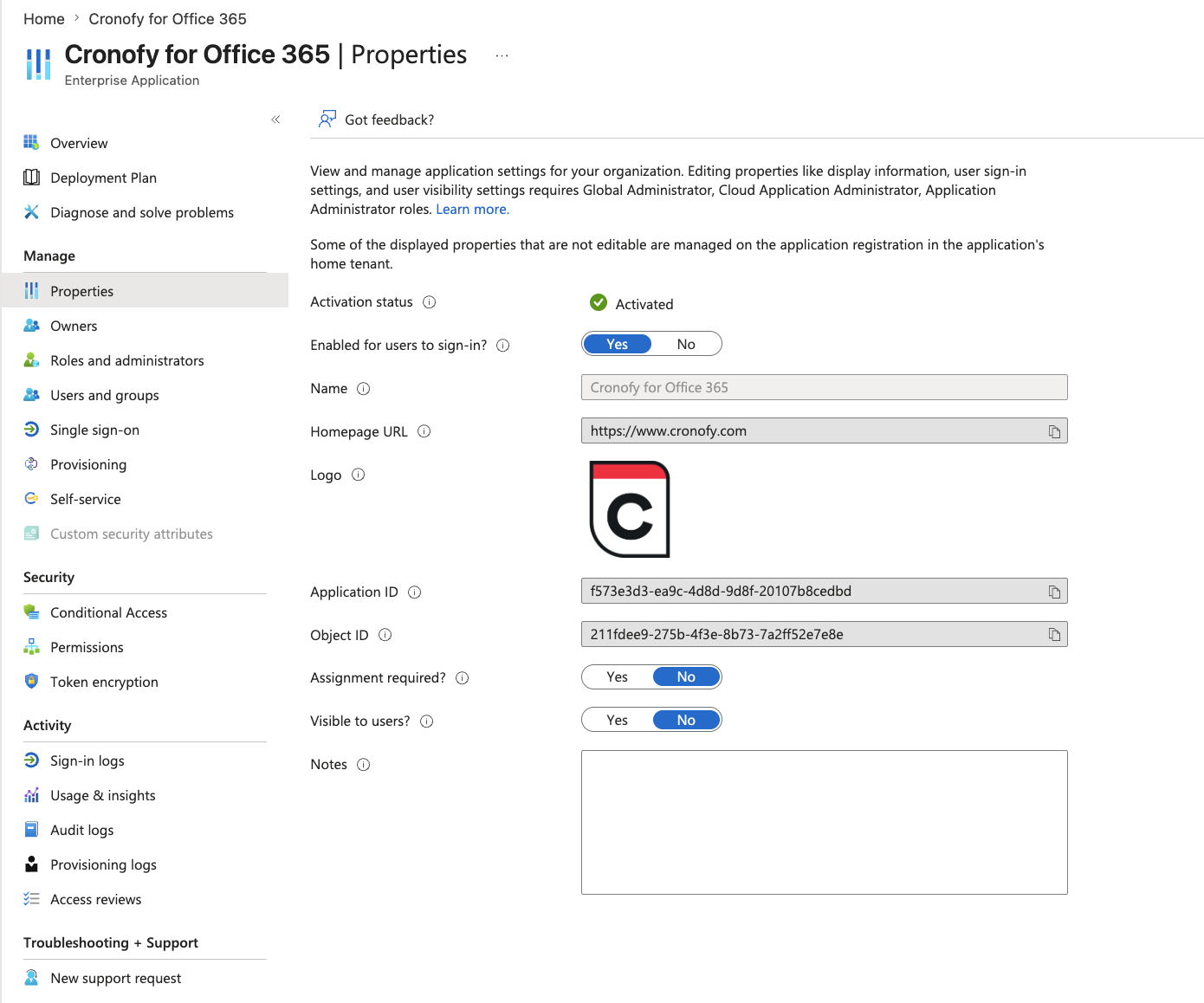
- Set Assignment required? to Yes, then click Save. See Microsoft’s documentation on the Assignment required property for more information.
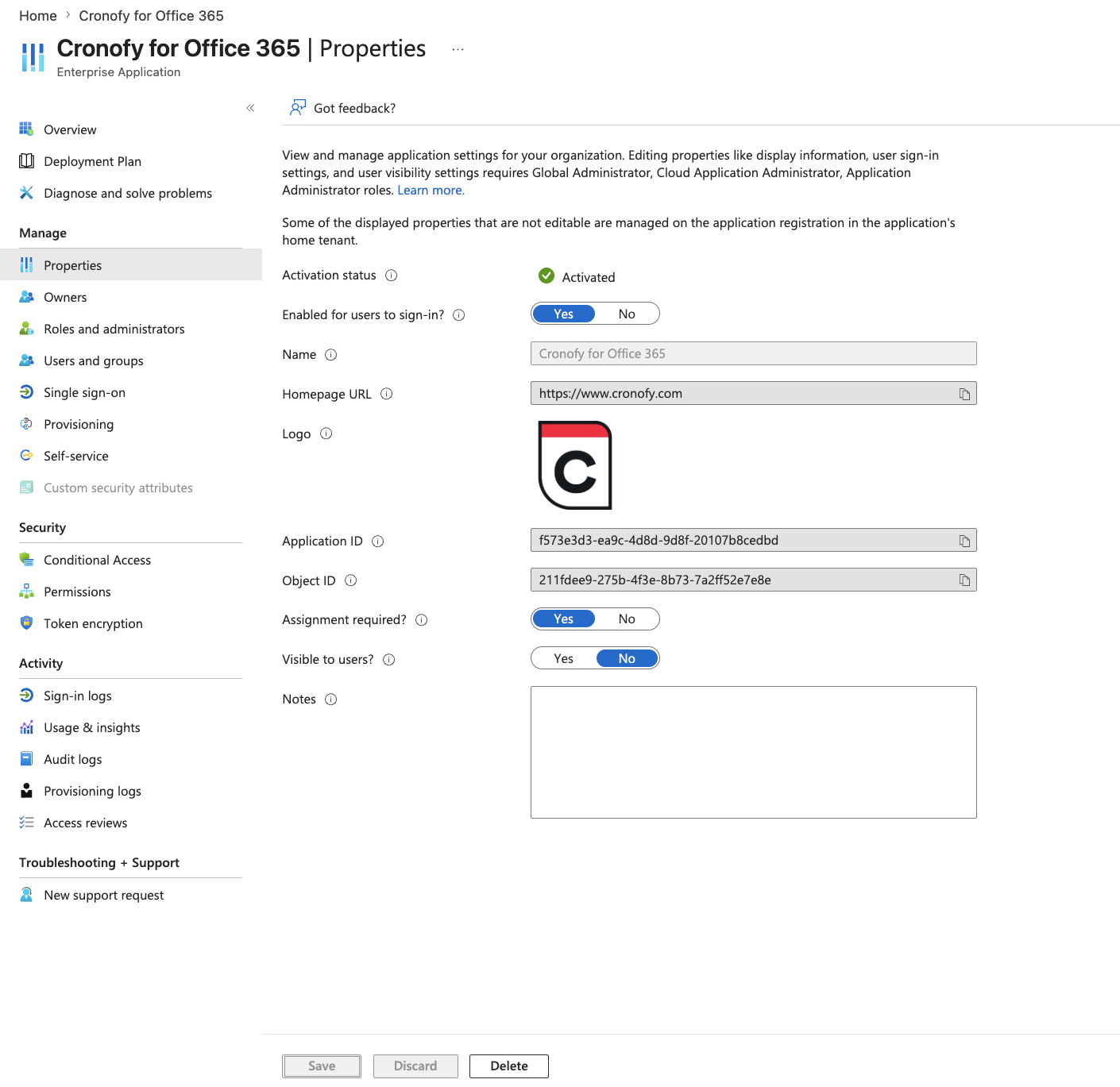
- While still viewing the Cronofy application, go to Manage > Users and groups, then select Add user/group.
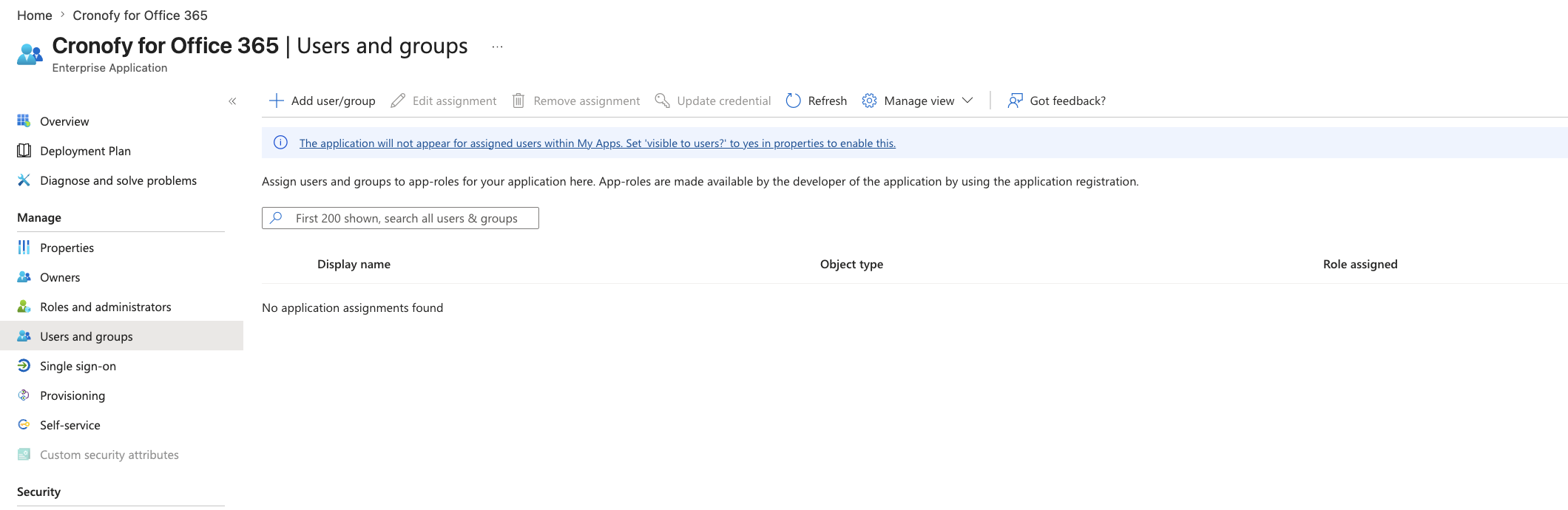
- Select the users and/or groups who should be permitted to connect via Individual Connect, then click Assign. See Microsoft’s documentation on assigning users and groups to an application for more information.
What unassigned users will see #
Once assigned, only the selected users will be able to complete the Individual Connect authorization flow and grant Cronofy the required permissions.
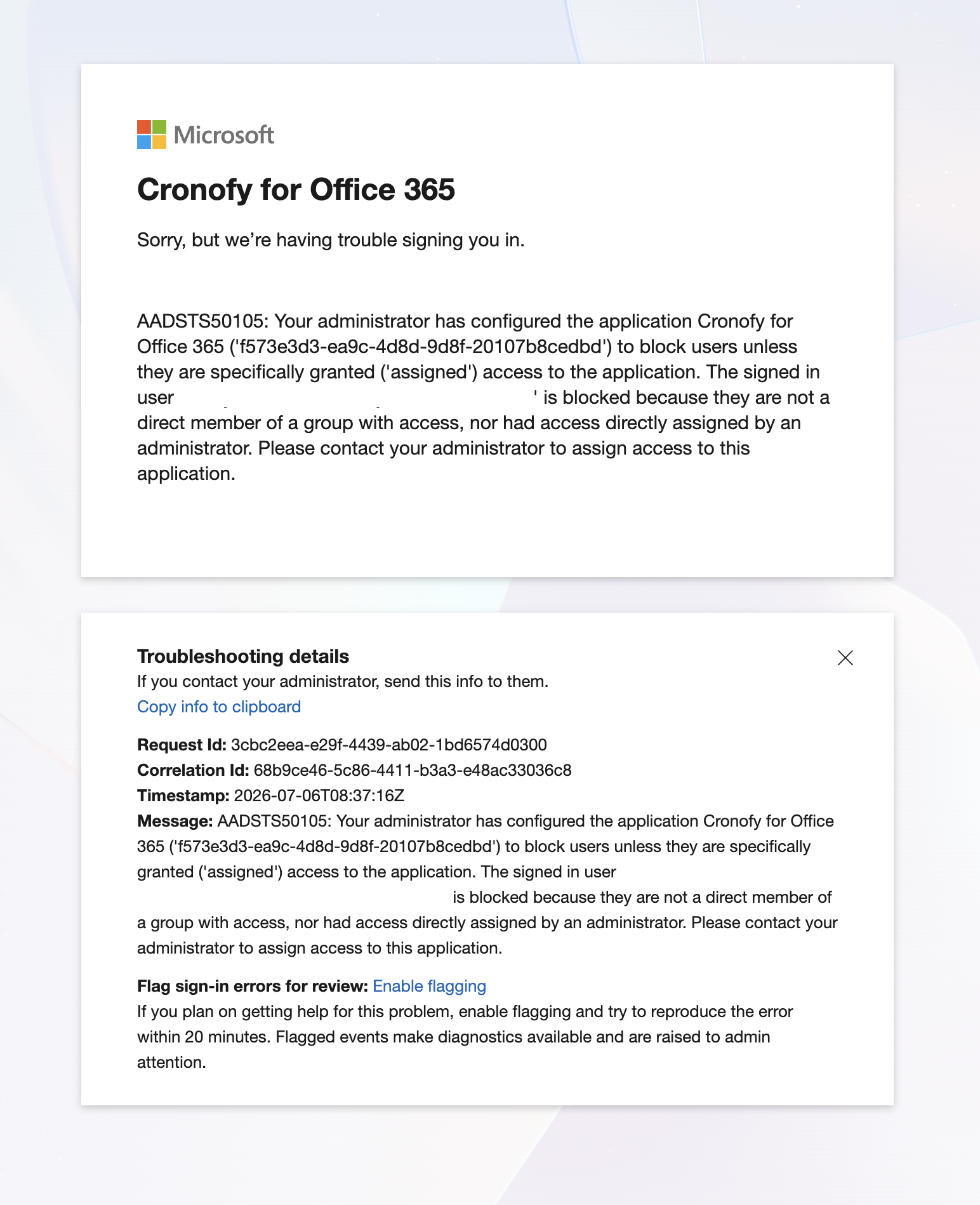
Any other user attempting to connect will be blocked by Microsoft before reaching Cronofy and will be shown the following message:
Additional reading #
For further reading on this, please see Microsoft’s documentation on restricting your Microsoft Entra app to a set of users.
If you require any further assistance, please contact us at support@cronofy.com.