Customization
Read as MarkdownYou can customize the appearance of your application within Cronofy.
For example, you can add your logo to the OAuth authorization screen.
To do that go to your application Developer dashboard, on the left, in the sub-menu, click on Branding.
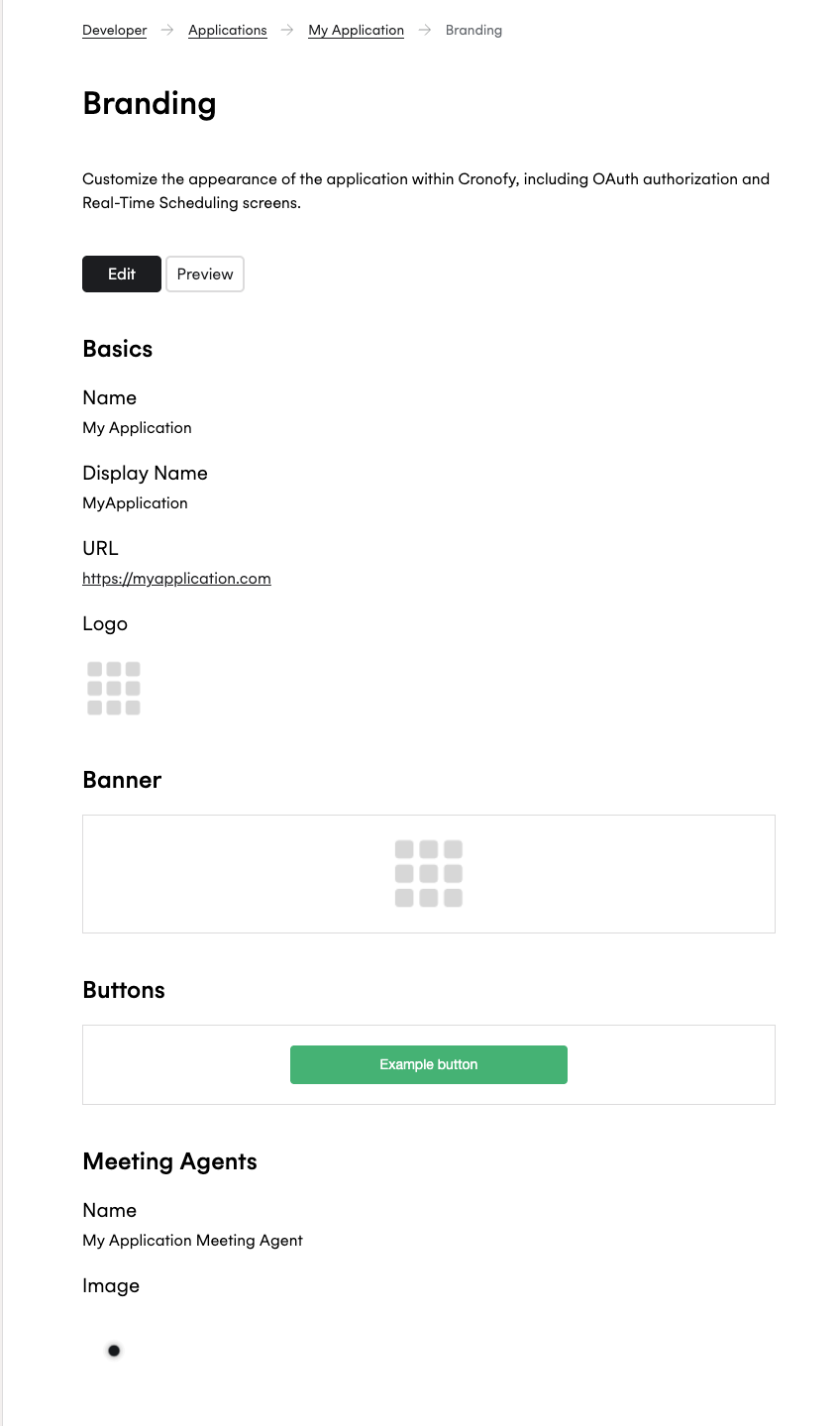
Customizable fields #
The following fields can be updated from the Branding section of your Developer dashboard.
- Name — The internal identifier for your application.
- Display Name — The name shown to users during authorization and scheduling flows.
- URL — The URL associated with your application, typically your homepage.
- Logo — An image displayed on the authorization screen and other user-facing surfaces.
- Banner — A wider header image used that can be displayed on the authorization screen and other user-facing surfaces .
- Buttons — The color and style of call-to-action buttons shown to users.
- Meeting Agents — Settings applied to your Meeting Agent.
- Name — The name displayed for the Meeting Agent.
- Image — An Image shown alongside the Meeting Agent.