Calendar Access Modes FAQs
How do I identify which Access Mode a user has selected?
To identify which Calendar Access Mode a user has selected when connecting their calendar to Cronofy within your application, your application can make use of the Userinfo endpoint to check either the provider_name or provider_service. If a user has selected Free/Busy access mode these parameters will return ms_graph_free_busy and google_free_busy and for No-Access mode these will return as cronofy
You can also identify the access mode that a user has selected within the response of the Request an Access Token after a succesful call to this endpoint.
Read MoreDo I have to offer No Access mode as well as Free/Busy?
Your application doesn’t need to offer both new calendar access modes. If you’d like to only offer one, such as Free/Busy access, simply enable it from the Features section of your application within the Cronofy dashboard.
To do this visit the Features section for your application in the Cronofy Developer Dashboard and toggle on the options to offer Free/Busy to your customers:
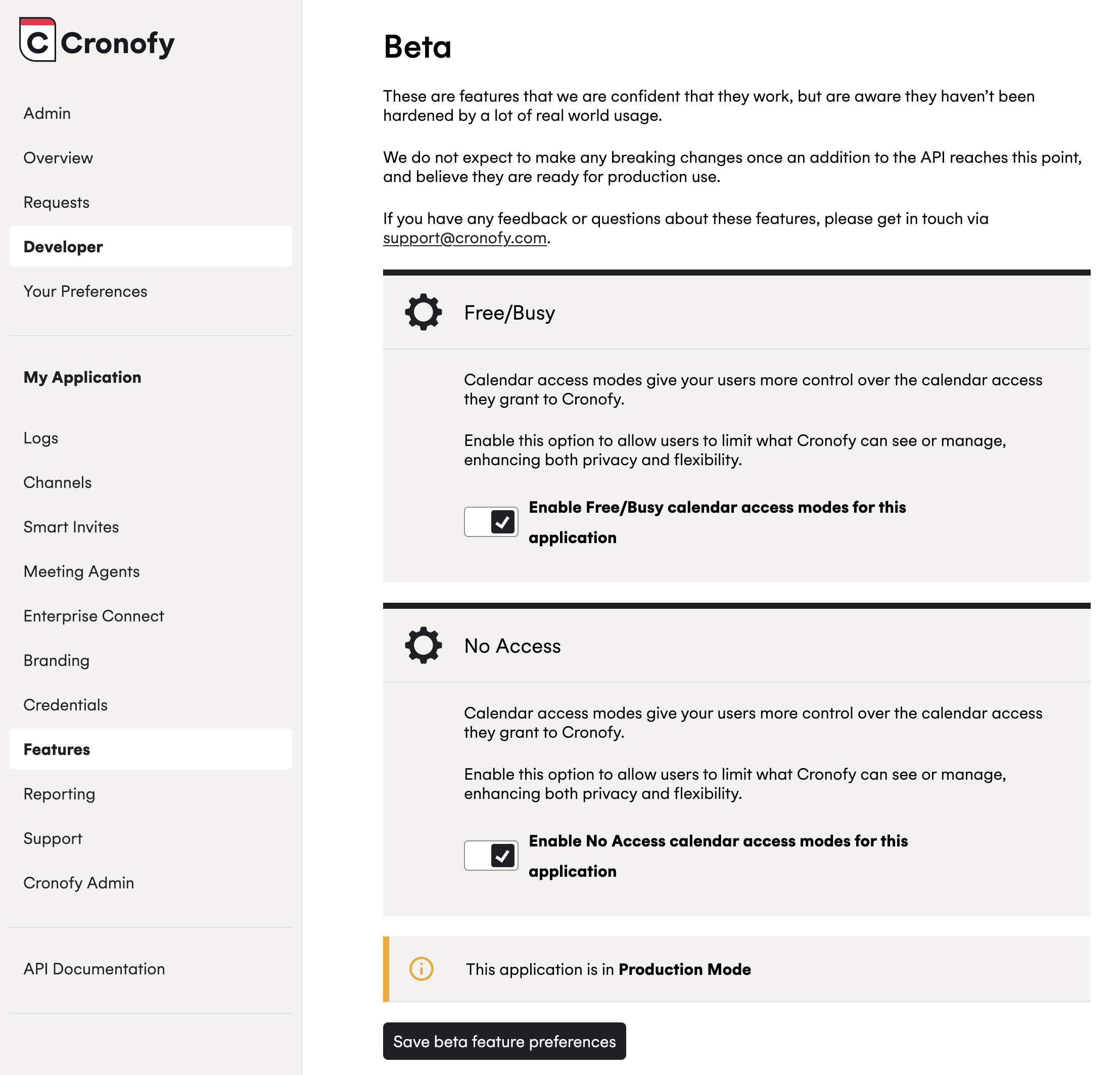
Please note that Free/Busy calendar access mode is the only one becoming the default for applications from 3rd March onwards if they request free_busy_write. For more information on this change, see the link provided here.
Does Conferencing still work in these new modes?
Yes, Conferencing can be provisioned as usual, using the conferencing options.
Services like Zoom, WebEx and GoTo all work the exact same way.
Microsoft Teams and Google Meet can still be used, but not via the integrated profile_id option any more but instead they need to be connected separately.
This is because connections via Free/Busy and No Access Mode calendars do not have permissions to write to the users calendar, and so cannot reach those conferencing options.
What do I do if I want to change the scopes my application requests?
To use Calendar Access modes, you’ll need to be requesting the free_busy_write scope when authorizing a user’s calendar via Individual Connect or for Enterprise Connect if your application doesn’t do so already.
If your application is not requesting free_busy_write scope, you will need to update the requests you are making when Requesting Authorization with this scope:
Individual Connect
Required Scope: free_busy_write
    https://app.cronofy.com/oauth/authorize?response_type=code
      &client_id={CLIENT_ID}
      &redirect_uri={REDIRECT_URI}
      &scope=free_busy_write
      &state={STATE}
Enterprise Connect
Required Delegated Scop: free_busy_write
What should I do if my customer wants to reconnect to Free/Busy Calendar Access mode
We do not advise that your users switch from Read/Write access mode to Free/Busy access mode. If they have already gone through the compliance journey to connect, they will be enjoying the most seamless experience.
However, this may matter enough to some customers that they would rather downgrade their experience to have less detailed connection with Cronofy.
In the scenario where a user or domain administrator wishes to change their Cronofy connection from Read/Write to Free/Busy access you will need to follow these steps below depending on if the user is connected via Individual Connect or Enterprise Connect.
Read More