Out of Office
Read as MarkdownMany applications need to reflect the time that someone is not working in the calendars they schedule against - annual leave, vacation or PTO, public holidays, sick days, sabbaticals, or a day spent away from their usual site. Typically this time off comes from an HR or workforce management system and needs to end up in the calendar so that both the person and anything scheduling around them can see it.
You create these records as events using Create or Update Event. The part to get right is the event’s transparency, which tells Cronofy whether the person is busy for that period and in what way, so that the Availability API and free/busy lookups treat the time as expected.
To write into a user’s calendar you need the create_event scope and a calendar whose calendar_readonly value is false.
All-day events are free by default #
If you create a Date-based (ie. all-day) event without specifying its transparency, Cronofy uses transparent, which means the person does not appear busy for the duration. A holiday record created that way will show up in the calendar, but it will not stop the Availability API offering slots during it.
So to create busy all-day events, set the transparency explicitly.
Choosing the transparency field #
There are two fields you can use to say that the person is busy, and which one you reach for depends on how much detail you want the calendar to carry:
transparencytakesopaqueortransparent. It is supported by every calendar provider, andopaqueis all that is needed to make the time count as busy.extended_transparencytakes those same two values plusout_of_office,working_elsewhereandtentative, which describe why the person is busy. Only Outlook.com, Microsoft 365 and Exchange calendars can store the extended values - every other provider falls back to the equivalenttransparencyvalue, so the time is still blocked, it just shows as “Busy” rather than “Out of office”.
| Outlook “Show as” | transparency | extended_transparency |
|---|---|---|
| Free | transparent | transparent |
| Busy | opaque | opaque |
| Working elsewhere | opaque | working_elsewhere |
| Tentative | opaque | tentative |
| Out of office | opaque | out_of_office |
Because that fallback is automatic, you do not need to know which provider a calendar belongs to before you write the event. Sending extended_transparency is safe for every provider and gives the more accurate status wherever it is supported, so that is what the examples below use.
Provide only one of extended_transparency or transparency. If you send both they must agree with each other, per the table above.
Creating a holiday record #
The clearest way to describe an absence is with extended_transparency set to out_of_office.
POST /v1/calendars/cal_n23kjnwrw2_jsdfjksn234/events HTTP/1.1
Host: {data_center_url}
Authorization: Bearer {ACCESS_TOKEN}
Content-Type: application/json; charset=utf-8

{
  "event_id": "leave-48291",
  "summary": "Annual leave",
  "start": "2026-11-01",
  "end": "2026-11-06",
  "tzid": "Europe/London",
  "extended_transparency": "out_of_office",
  "event_private": true
}
That creates a single all-day event covering 2026-11-01 to 2026-11-05 inclusive.
On Outlook.com, Microsoft 365 and Exchange that event’s Show as status is set to Out of office, as seen here in Outlook:
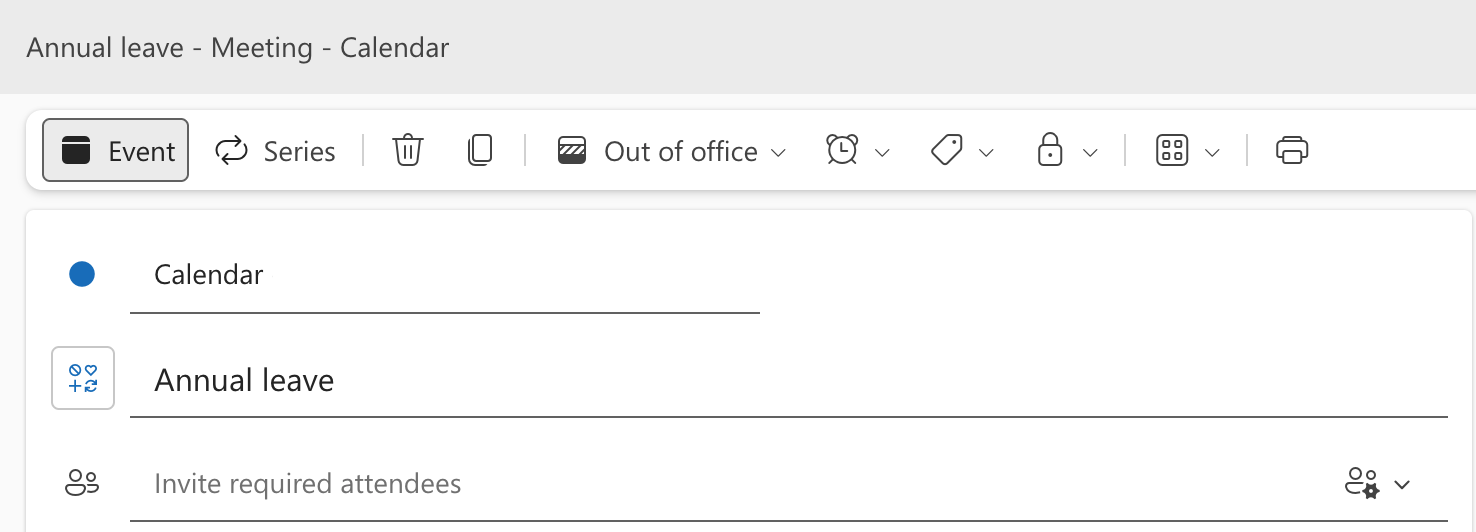
A few things to note:
endis exclusive. For all-day events theendis the day after the last day of the absence. Five days of leave starting on 2026-11-01 ends on 2026-11-06.- Use one event for the whole absence, rather than one per day. It reads better in the calendar and it is fewer records for you to keep in step.
event_idis yours to choose. Use the identifier of the leave record in your own system. Because this endpoint is an upsert, sending the sameevent_idandcalendar_idagain updates the same event rather than creating a duplicate, which makes retries and syncs safe.- Set
tzid. It determines where the day boundaries fall, so a UK employee’s day off is a UK day off rather than a UTC one. - Consider
event_private. Absence records can be sensitive. Marking them private limits what colleagues see when they look at the calendar, and it is good practice to keep the reason for the absence out of thesummaryas well.
See Create or Update Event for the full list of parameters you can set on the event.
If you would rather not use extended_transparency #
Set transparency to opaque instead. Everything else about the event stays the same, and the time is blocked in exactly the same way - it just shows as “Busy” in every calendar, including Outlook.com, Microsoft 365 and Exchange.
{
  "event_id": "leave-48291",
  "summary": "Annual leave",
  "start": "2026-11-01",
  "end": "2026-11-06",
  "tzid": "Europe/London",
  "transparency": "opaque",
  "event_private": true
}
Part-day absences #
For a half day, a medical appointment or a couple of hours away from the desk, you can use a Time-based event. These already default to opaque, so the time is blocked even if you don’t specify the transparency - but setting extended_transparency still gives the more accurate status where it is supported. Times are always supplied in UTC, with tzid telling the calendar client how to localize them - see Translating Between Local Time and UTC if you need to convert from local time.
{
  "event_id": "leave-48304",
  "summary": "Annual leave (half day)",
  "start": "2026-11-01T08:00:00Z",
  "end": "2026-11-01T12:00:00Z",
  "tzid": "Europe/London",
  "extended_transparency": "out_of_office",
  "event_private": true
}
Working elsewhere #
Not every absence from the office is an absence from work. Where someone is working away from their normal site but is still available for meetings, working_elsewhere describes that more accurately than out_of_office.
{
  "event_id": "wfh-1042",
  "summary": "Working from Manchester office",
  "start": "2026-11-01",
  "end": "2026-11-02",
  "tzid": "Europe/London",
  "extended_transparency": "working_elsewhere"
}
Note that working_elsewhere still maps to opaque, so by default it blocks time in the same way. See effect on availability below for how to change that.
Effect on availability #
Because working_elsewhere, tentative and out_of_office map to opaque, holiday records created this way are treated as busy periods by the Availability API and no slots will be offered during such events. That can be exactly what you want from a holiday record.
If you need the opposite (for example, to treat working_elsewhere as available since working from another site does not necessarily mean being unavailable for meetings), pass the values you want to disregard in participants.members.ignored_extended_transparencies.
{
  "participants": [
    {
      "members": [
        {
          "sub": "acc_64b17d868090ea21640c914c",
          "ignored_extended_transparencies": ["working_elsewhere"]
        }
      ],
      "required": "all"
    }
  ],
  "required_duration": { "minutes": 30 },
  "query_periods": [
    {
      "start": "2026-10-27T00:00:00Z",
      "end": "2026-10-28T00:00:00Z"
    }
  ]
}
This is covered in more detail in Ignoring Calendar Events.
Amending and cancelling #
When a leave record changes in your system, send the whole event again with the same calendar_id and event_id. The existing event is updated in place.
When leave is cancelled, remove the event with Delete Event, again using the same calendar_id and event_id.
DELETE /v1/calendars/cal_n23kjnwrw2_jsdfjksn234/events HTTP/1.1
Host: {data_center_url}
Authorization: Bearer {ACCESS_TOKEN}
Content-Type: application/json; charset=utf-8

{
  "event_id": "leave-48291"
}
Reading records back #
The events you create are Managed Events, so they are not returned by Read Events unless you ask for them. Pass only_managed to retrieve just the records your application manages, which is a straightforward way to reconcile the calendar against your own system.
GET /v1/events?tzid=Etc%2FUTC&only_managed=true HTTP/1.1
Host: {data_center_url}
Authorization: Bearer {ACCESS_TOKEN}
Read Events also returns extended_transparency for every event, so you can pick up absences the user has entered in their calendar themselves, not only the ones you have written. Bear in mind that the extended values are currently only available from Outlook.com, Microsoft 365 and Exchange calendars - elsewhere the field carries the standard transparency value, so an absence the user has entered looks the same as an ordinary busy event.
For keeping your own records in step with a user’s calendar more generally, see Recommended Event Sync.
Records across a whole team #
Events belong to a calendar, so a public holiday that applies to everyone still needs one event per person. Give each one a deterministic event_id (e.g. holiday-new-years-day-2027) so that re-running the sync is safe.
If you would rather keep these records separate from the user’s own calendars, you can create a calendar in their profile to hold them, which lets them show and hide the records as a group.
Where you are scheduling for people who have no calendar connected at all, Application Calendars accept events in the same way and can hold their holiday records too.