Set up a Sandbox
Read as MarkdownA Sandbox is an Organizational Unit that Cronofy sets up for you, called Hill Valley Futures. It has test members with their own calendars and working hours, Selection Rules that group them, and a Template, so you can try scheduling without connecting any real calendars.
Sign up #
Sign up with the developer sign-up.
You choose one of six data centers to keep your account and data in. They run as entirely separate instances, and no data flows between them. See Data centers for more.
Create your application #
After signing up, you land on the Application management page. An application represents your product: your customers connect to it, and each one is represented by a Managed Organizational Unit.
Create the Sandbox #
- Go to the Organizational Units tab under your application in the left navigation.
- Click Create sandbox.
- You’re taken to the Sandbox Organizational Unit, Hill Valley Futures.
- Note the Organizational Unit ID,
hill_valley_futures_sandbox, and the API authorizations. You’ll use them to set up the Embed and to call the API. - Set the callback URL that notifications about the Organizational Unit are sent to.
In production, your application provisions an Organizational Unit like this for each of your customers over the API, choosing its ID and getting an access token back.
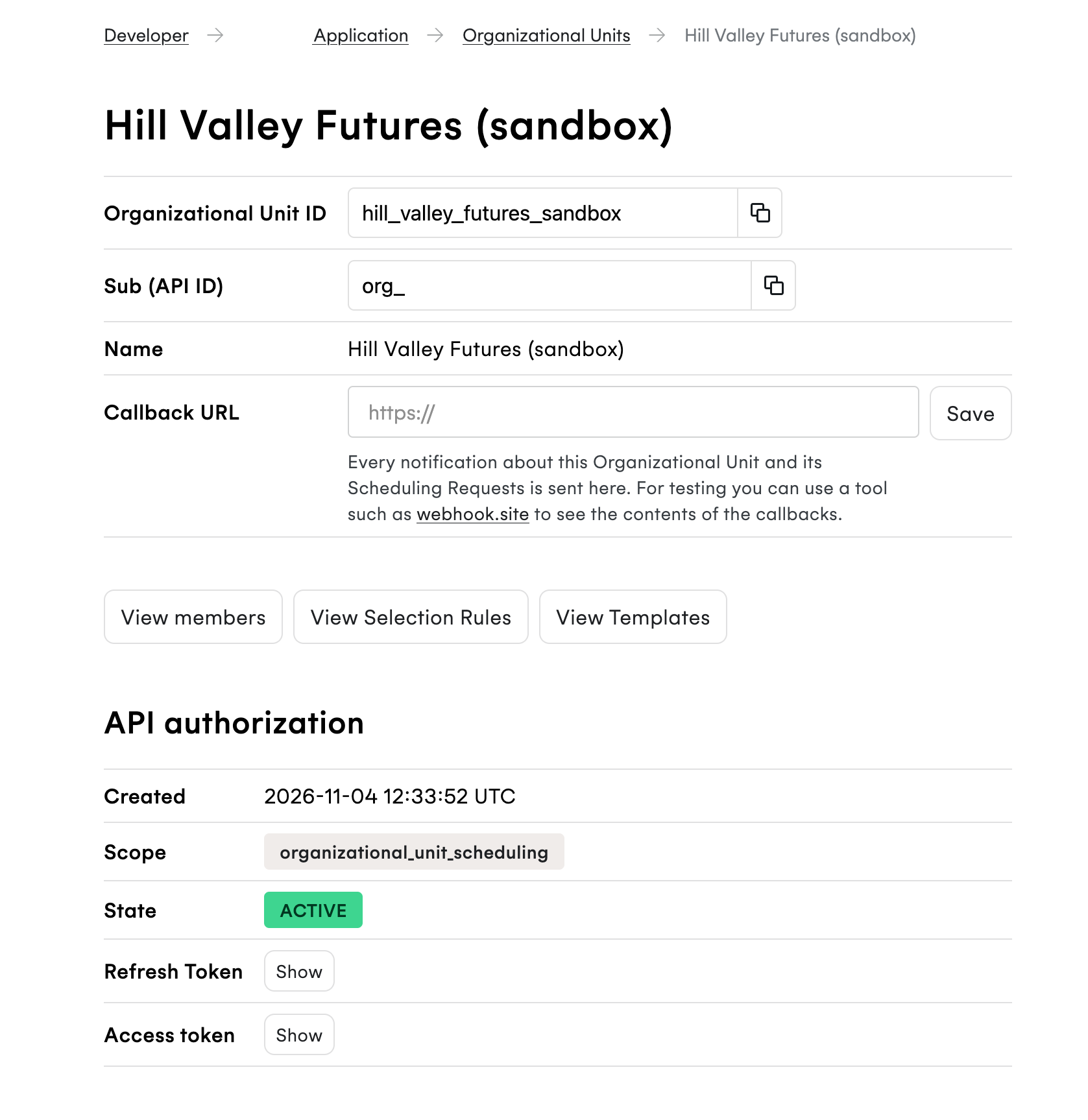
Each application can have one Sandbox. Once it’s created, the Create sandbox button is no longer shown. If you see “Your sandbox couldn’t be created”, try again, and contact us if it keeps happening.
Set your webhook URL #
Cronofy sends a webhook to your application whenever one of its Scheduling Requests changes, such as when the recipient chooses a time or the meeting is rescheduled or cancelled.
- Go to the Credentials section of your application’s settings.
- Enter the URL in Embedded Scheduler webhook callback URL, and click Save webhook URL.
Despite its name, this URL receives webhooks for every Scheduling Request, whether it was created through the Embed or the API. While you’re trying things out, a request inspector such as a temporary webhook testing site lets you see them arrive.
Scheduling Request webhooks lists every type of webhook, and Authentication explains how to check one came from Cronofy.
Meet the members #
Click View Members on the Hill Valley Futures page. There are two test members:
| Member | Working hours |
|---|---|
| Doc Brown (doc@hillvalleyfutures.com) | Monday to Wednesday, 09:00 to 17:00 |
| Marty McFly (marty@hillvalleyfutures.com) | Monday to Friday, 08:00 to 15:00 |
Click a member to see their details and Availability Preferences. The details
include their sub, which identifies them when you call the API.
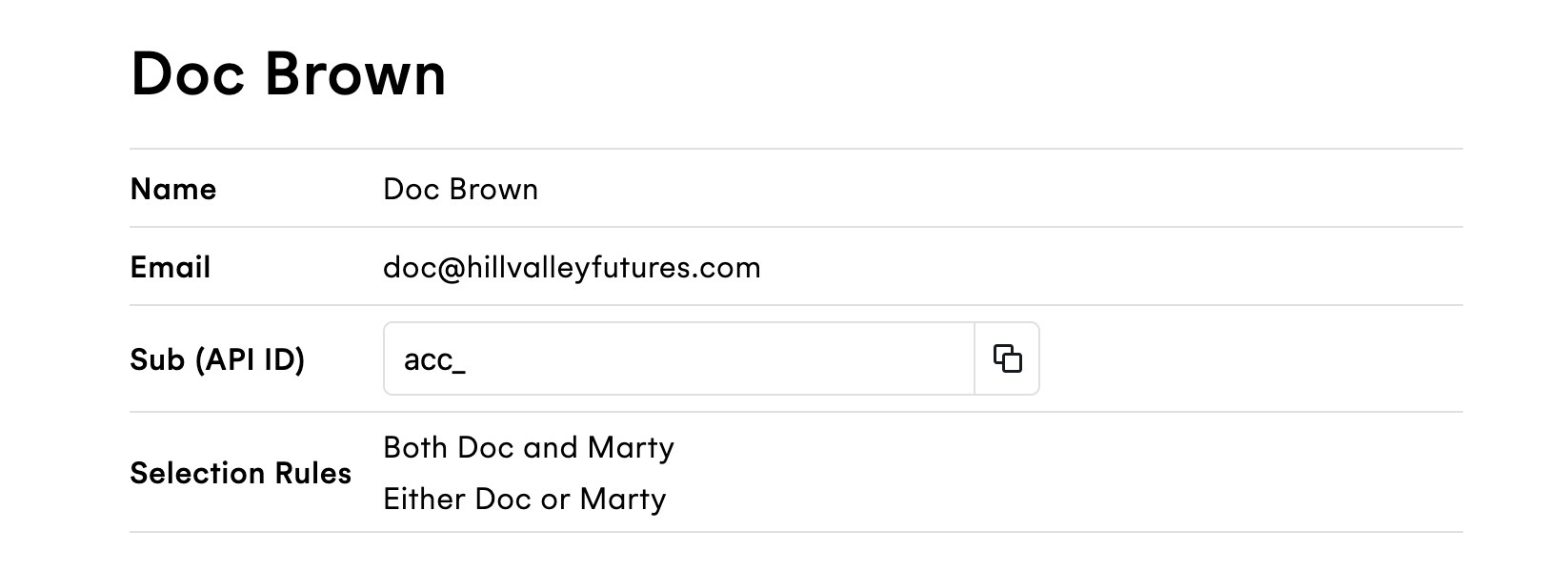
Availability Preferences hold each member’s working hours. Doc and Marty’s are set up to show how Selection Rules affect the times offered, but you can click and drag to change them.
The Sandbox also has two Selection Rules and a Template, which you’ll use in Use Selection Rules and Templates.
Next #
Create a request with the Embed, or go straight to creating one with the API.