MCP Server
Read as MarkdownThe Cronofy MCP Server lets AI tools schedule meetings with Scheduling Requests, so Cronofy finds a time, books it, and handles rescheduling and cancelling.
It is an endpoint that supports the Model Context Protocol for adding Cronofy to your agentic workflows. It is a server that provides tool rather than search capabilities.
You can add the Cronofy MCP Server to your environment and list the tools without authorization. However, authorization is required to call any of the tools provided.
Pre-requisites #
The MCP Server schedules for the members of an Organizational Unit, using their calendars and the Organizational Unit’s Scheduling Controls, so it needs one to connect to. Which one, and how your application gets access to it, depends on whose meetings the agent schedules; see Integration approaches.
- An Organizational Unit - to schedule for your own company, sign up to create one, and make a note of the data center you sign up in. To schedule for your customers, each customer has their own Organizational Unit.
- An Application - enable the Developer Tools for your account and create an Application. Use an Internal Application for your own company’s Organizational Unit, or a standard Application that each customer authorizes for theirs.
An Internal Application is also the simplest way to try the MCP Server out. It’s linked to your Organizational Unit and has access to all of its members without any authorization flow, so you can schedule on their behalf straight away, and move to a standard Application when you build for your customers.
Setup #
The URL for the server is in the form https://api.cronofy.com/v1/mcp_server. Just replace the host with the appropriate API Host for the Cronofy data center that you are using.
Specific setup instructions are available Microsoft Copilot and Claude Code
Your own Organizational Unit #
To connect to your own company’s Organizational Unit, use the client_secret
of your Internal Application as an API key.
You provide this as a Bearer Token in the Authorization header, e.g.:
Authorization: Bearer {client_secret}Your customers’ Organizational Units #
To connect to your customers’ Organizational Units, your MCP Client needs to
support OAuth 2.0 authentication. Create a standard Application to generate the client_id and client_secret values you need.
The authorization endpoints can be found by querying the OAuth metadata endpoint.
https://api.cronofy.com/.well-known/oauth-authorization-serverAgain use the appropriate API Host for the Cronofy data center you are using.
When the MCP Client needs to authenticate a user, it takes them through the OAuth 2.0 flow, authorizing your application for their Organizational Unit and generating the access tokens needed to schedule for its members.
Note, Cronofy does not currently support Dynamic Client Registration.
Usage #
Follow the instructions for your MCP Client to explore the tools exposed by the Cronofy MCP server. Part of the promise of MCP is that natural language can be used to initiate operations, making it much more flexible and open to evolution.
One of the tools exposed by the server is Create Scheduling Link. A typical usage of this would be:
Create a Cronofy scheduling link for a meeting with doc@evenitron.com for Marty McFly (marty@example.com) about Plutonium Handover.The MCP client will then receive structured content that includes a scheduling_link value that can then be sent to Marty.
You can also ask the tool to suggest times to meet and then choose a time from the suggestions.
Marty (marty@evenitron.com) is in London, suggest times for him to meet with adam@evenitron.com to discuss partnerships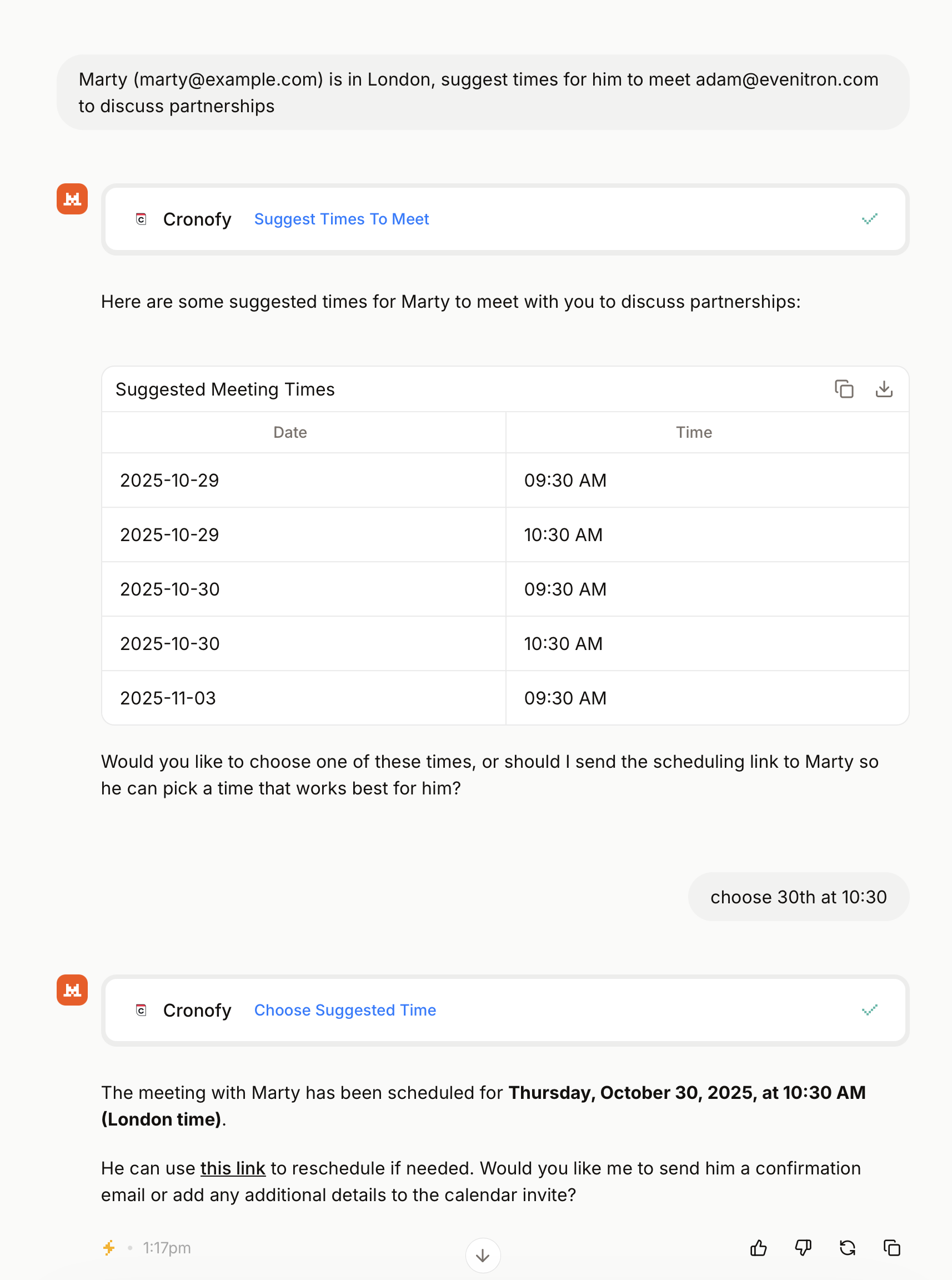
Specification support #
MCP is still evolving, so we follow the specification as closely as practical and update the server as it changes. Support for the specification varies between MCP Clients, especially for authentication and authorization. If something doesn’t work as expected, let us know through our support channels.