# Date Time Picker
 The Date Time Picker Element is an embeddable interface for visualizing real-time availability. It converts an [Availability query](/developers/api/scheduling/availability/index.md)
into a calendar highlighting the available days with a list of the available slots for each day. It also provides a dropdown to allow the user to select a specific timezone to view the availability in.
When a user confirms a slot, the Element passes that slot's details into a
callback function (provided when the Element is initialized).
### Demo
*(Interactive UI element — see the HTML version for the live demo)*
### Example initialization
```html
```
### Element permissions
Only `availability` is required when generating the [Element Token](/developers/ui-elements/authentication/index.md).
### Element options
##### `element_token` *(required)*
The [Element Token](/developers/ui-elements/authentication/index.md) the
Date Time Picker will use to communicate with Cronofy.
*Not required if the Element is activated in demo mode.*
##### `target_id` *(required)*
The ID of the DOM node the Element will be loaded in to.
##### `availability_query` *(required)*
Object describing the Cronofy [Availability request](/developers/api/scheduling/availability/index.md) used to generate the offered times.
The Date Time Picker will paginate queries for availability, only querying for the currently-displayed month view. This means that the normal [35-day maximum for `query_periods`](/developers/api/scheduling/availability/index.md) does not apply.
As a result, `query_periods` for the Date Time Picker can span many months, up to the limit of [201 days in the future](/developers/api/scheduling/availability/index.md).
#### Sequenced Availability
It is possible to use the Date Time Picker to display [Sequenced Availability](/developers/api/scheduling/sequenced-availability/index.md) by using a [Sequenced Availability query](/developers/api/scheduling/sequenced-availability/index.md) in place of a standard query. This feature is available from `v1.43.0`.
##### `sequence_title` *(optional)*
The Date Time Picker Element allows an additional string attribute of `sequence_title` to be passed with each sequence object in a [Sequenced Availability query](/developers/api/scheduling/sequenced-availability/index.md).
An example of a sequence with a `sequence_title`:
```json
{
"sequence_id":"123",
"sequence_title": "An example title",
"ordinal":1,
"participants":[
{
"members":[
{
"sub":"acc_12345678",
}
],
"required":"all"
}
],
"required_duration":{ "minutes": 60 }
}
```
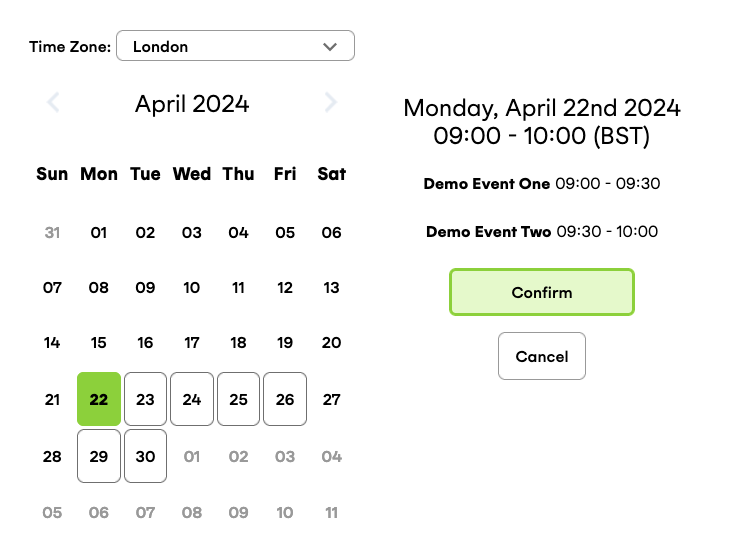
When in `confirm` mode, this enables the confirm screen to show a breakdown of the individual event times in the sequence a user has selected. The breakdown is also passed as part of the `slot_selected` notification.
If `no-confirm` mode is selected, you will see the sequence as one slot in the UI but this will create separate events in the backend as the slots are selected.
See an example of sequenced availability in `confirm` mode below:
Available classes to style the sequence breakdown:
- `{PREFIX}__confirm-details--sequence`
- `{PREFIX}__confirm-details--sequence-title`
- `{PREFIX}__confirm-details--sequence-time`
##### `config.slot_button_mode` *(optional)*
This config option takes two "modes":
- `summary` (default)
- `detailed`
When using a [Sequenced Availability query](/developers/api/scheduling/sequenced-availability/index.md), the `detailed` mode will set the slot buttons to show a breakdown of the indivual times in a sequence.
Available classes to style the detailed slot button:
- `{PREFIX}__time-slot--detailed`
- `{PREFIX}__detailed-slot-list`
- `{PREFIX}__detailed-slot-list--item`
##### `callback` *(required)*
The function to be called when an action has occurred within the Element. Receives an object in the format:
```json
{
"notification": {
"type": "notification_type"
}
}
```
The object will always include a `notification` object with a `type` attribute to allow you to determine how to handle it. New notifications will be added in the future and differentiated by having new `type` values, so your application should ignore notification types that do not exist in the current list.
###### date_selected
Sent by the Element when the user has selected a date from the calendar view.
```js
{
"notification": {
"type": "date_selected"
"date": "2026-04-23"
"tzid": "Europe/London"
}
}
```
###### slot_selected
Sent by the Element when in the `confirm` mode after the user has confirmed
their selection, and straight away when the slot is selected in `no_confirm`
mode.
```js
{
"notification": {
"type": "slot_selected"
"slot": {
"start": "2026-04-23T09:00:00Z",
"end": "2026-04-23T11:00:00Z",
"participants": [
{ "sub": "acc_5ba21743f408617d1269ea1e" },
{ "sub": "acc_64b17d868090ea21640c914c" }
]
}
"tzid": "Europe/London"
}
}
```
###### no_slots_found
Sent by the Element when the provided `availability_query` has returned no available slots.
```js
{
"notification": {
"type": "no_slots_found"
}
}
```
##### `data_center` *(optional)*
Designates the Cronofy data center the Element will communicate with.
Default value is `us`.
##### `config` *(optional)*
Use this object to add further configuration to the Element:
##### `config.mode` *(optional)*
The Date Time Picker Element has two "modes" it can operate in:
- `confirm` (default)
- `no_confirm`
When in `confirm` mode, clicking a slot displays a confirmation view that allows a user to confirm their selection or return to the list of slots. The callback function will be called with a `slot_selected` notification when a user confirms their selected slot.
When in `no_confirm` mode, the "confirmation" step is skipped. In this mode, the callback function will be passed a `slot_selected` notification when a user selects a slot, without any confirmation step.
##### `config.logs` *(optional)*
Set the level of logging you want to appear in the console:
- `info`: show verbose logging (recommended for development use only).
- `warn`: (default) only log errors and warnings.
- `error`: only log errors.
- `none`: suppress all console output from the Element.
##### `config.tz_list` *(optional)*
The Date Time Picker Element includes a timezone dropdown that allows the user to view the available days and times in a timezone of their choice.
This config option allows you to set an array of timezones you want to appear in the timezone dropdown:
```js
"tz_list": [
"America/Sao_Paulo",
"Etc/UTC",
"Pacific/Fakaofo",
"Europe/London",
],
```
The list must be made up of known time zone
identifiers from the [IANA Time Zone Database](https://www.iana.org/time-zones). Setting this option will entirely override the default list, so ensure you include all the timezones you need.
##### `config.selected_date` *(optional)*
This config options allows you to set the initial selected date. The option accepts a string date in the format `"YYYY-MM-DD"`.
If this option is not set, or an invalid date is used, it will fallback to the first date that has available slots, based on the results of the `availability_query`.
##### `config.display_slot_timezone` *(optional)*
This config option allows you to toggle the display of the timezone abbreviations next to time slot information on the slot buttons, and the confirm screen.
The value is set to `true` by default, setting it to `false` will hide the timezone abbreviations.
##### `config.month_view_mode` *(optional)*
This config option takes two values:
- `overflow` (default)
- `minimal_overflow`
- `single`
The default `overflow` mode displays an even 6 week grid, with days in the previous and next months filling in any days of the week necessary to fill the grid.
Based on the set `config.week_start_day` and the day of the week that is the 1st of the selected month, the default mode can result in an entire week for the next month being displayed. Setting the mode to `minimal_overflow` will ensure that the weeks being displayed only contain days from the selected month, and any necessary overflow to ensure an even grid view.
Setting the mode to `single` will hide any days outside of the current month from the view. The default option of `overflow` will include any overflowing days in the view to create a consistent grid.
##### `config.display_slot_navigation` *(optional)*
This config option allows you to toggle the display of two new navigation buttons that will appear below the list of available slots.
These buttons will make it easier for a user to navigate through the available days, particularly when viewing the Date Time Picker on smaller screens such as mobiles.
The value is set to `false` by default, setting it to `true` will display the new buttons.
##### `styles` *(optional)*
An object that controls the pre-packaged element styles.
##### `styles.prefix` *(optional)*
Customizable elements are given a prefixed class name using this value. For
example, if the `prefix` was set as "Foo", the class name on a slot element
would be `Foo__time-slot`.
Defaults to `DTP`.
##### `styles.colors` *(optional)*
Use these options to set the colors for various parts of the Element without the
need to add your own custom CSS. Each color option accepts either a valid HEX
code (e.g. `available: "#FF0000"`) or a browser-safe color name (e.g. `button: "tomato"`)
- `black` - defaults to `#000000`
- `white` - defaults to `#ffffff`
- `neutralDark` - defaults to `#6f6f6f`
- `neutral` - `#999999`
- `neutralLight` - `#e4ebf2`,
- `button` - button background color. Defaults to `#15B3D6`
- `buttonConfirm` - `#e2fac8`,
- `buttonConfirmText` - confirm button text color. Defaults to the `black` variable.
- `buttonHover` - button background color when hovered.
- `buttonText` - button text color. Defaults to the `black` variable.
- `buttonTextHover` - button text color when hovered. Defaults to the `black` variable.
- `buttonActive` - button background when selected/active.
- `buttonActiveText`: button text color when a button is active/selected. Defaults to the `black` variable.
##### `demo` *(optional)*
Boolean to activate demo-mode. Defaults to `false`. If `demo` is set to `true`
the Element will return mock data (and not make any API calls).
##### `locale` *(optional)*
The Date Time Picker supports localization (e.g. `locale: "fr"` to load in French). Defaults to browser language setting.
Supported locales (languages) for the UI Elements are:
- `ar` Arabic
- `cs` Czech
- `cy` Welsh
- `de` German
- `en` US English (default)
- `es` Spanish
- `fr` French
- `fr-CA` Canadian French
- `he` Hebrew
- `it` Italian
- `ja` Japanese
- `nl` Dutch
- `pl` Polish
- `pt-BR` Brazilian Portuguese
- `ru` Russian
- `sv` Swedish
- `tr` Turkish
- `zh-CN` Simplified Chinese
> **INFO:** To customise the time format to be in 12hr rather than 24hr format, you need to edit the Locale parameter.
Setting it to locale: "en-GB" will give you a 13:00 - 14:00 type format while setting locale: "en-US" will give you a 1:00PM - 2:00PM format.
##### `translations` *(optional)*
To override either a locale or a particular string, pass in a translations object here. The Date Time Picker uses the `date_time_picker` translation "context".
[Read more about customizing translations](/developers/ui-elements/customization/index.md)
> **INFO:** This Element has some additional, visually hidden labels for [screen reader](#accessibility) support. These should be taken into account when overriding the translations.
##### `tzid` *(optional)*
The time zone that the Date Time Picker will be rendered in. Must be a known time zone
identifier from the [IANA Time Zone Database](https://www.iana.org/time-zones).
If this value is not set, or is set to an invalid `tzid` then the Element will use the system time zone from the user's browser and trigger a [`warn` notification](/developers/ui-elements/index.md).
Be aware, using the `tzid` option will cause the Date Time Picker to render in a timezone that may not match the timezone of the user's computer. Be sure to highlight this to the user.
### Element classes
`PREFIX` default is `DTP`
Available classes:
- `{PREFIX}__details`
- `{PREFIX}__calendar-header`
- `{PREFIX}__calendar-header-button`
- `{PREFIX}__calendar-grid--week-day`
- `{PREFIX}__calendar-grid--button`
- `{PREFIX}__calendar-grid--available`
- `{PREFIX}__calendar-grid--focused`
- `{PREFIX}__slots-list`
- `{PREFIX}__no-slots`
- `{PREFIX}__time-slot`
- `{PREFIX}__confirm-details`
- `{PREFIX}__confirm-button`
- `{PREFIX}__cancel-button`
### Element methods
##### `refresh()`
From time to time you may wish to reload the DateTimePicker UI Element on the page. You can do this with the `DateTimePicker.refresh()` method:
```js
// Load DateTimePicker Element:
const DateTimePicker = CronofyElements.DateTimePicker(optionsObject);
// Refresh the DateTimePicker Element:
DateTimePicker.refresh();
```
> **WARNING:** Being able to refresh a UI Element is useful in cases where your availability may have changed behind the scenes. UI Elements gather their availability data when they are first loaded, so unless they are refreshed they will not be aware of any changes to availability.
##### `update()`
Should you need to update the `options` for any Element, you can reload them with the `.update()` method (this requires you to have saved your Element instance to a variable beforehand):
```js
// Load DateTimePicker Element:
const DateTimePicker = CronofyElements.DateTimePicker(optionsObject);
// Update the DateTimePicker Element with new options:
DateTimePicker.update(newOptions);
```
When updating, you do not need to redeclare *all* the options; you just need to add the ones you want to update.
**Note:** the `DateTimePicker.update()` method must be called with an options object, otherwise a [warning-level log notification](/developers/ui-elements/index.md) will be fired.
### Accessibility
The Date Time Picker Element has been built with accessibility in mind to help provide a better experience for all users. In it's default state, the Element meets WCAG 2.1 standards.
###### Screen reader support
There are additional, visually hidden labels on certain buttons to help provide context to screen reader users.
The translation names for these are:
- `confirm_slot_title`: a title for the confirmation dialog
- `nav_previous_month`: a title for the "previous" calendar navigtion button
- `nav_next_month`: a title for the "next" calendar navigtion button
- `select_time_slot`: visually hidden pre-text on the time slot buttons
###### Keyboard support
Additional keyboard functionality has been built into the timezone dropdown and the calendar grid.
When the timezone option list has focus:
- The `up` or `down` arrow keys will navigate through the list
- The `Enter` key will select a timezone
- The `Esc` key will close the timezone dropdown
When the calendar grid has focus:
- The `up`, `down`, `left` and `right` arrow keys will navigate through the available days. Unavailable days will be skipped.
- The `Enter` key will select a day and move the focus to the first option in the time slots list.
---
[Read in HTML](/developers/ui-elements/date-time-picker/)
The Date Time Picker Element is an embeddable interface for visualizing real-time availability. It converts an [Availability query](/developers/api/scheduling/availability/index.md)
into a calendar highlighting the available days with a list of the available slots for each day. It also provides a dropdown to allow the user to select a specific timezone to view the availability in.
When a user confirms a slot, the Element passes that slot's details into a
callback function (provided when the Element is initialized).
### Demo
*(Interactive UI element — see the HTML version for the live demo)*
### Example initialization
```html
```
### Element permissions
Only `availability` is required when generating the [Element Token](/developers/ui-elements/authentication/index.md).
### Element options
##### `element_token` *(required)*
The [Element Token](/developers/ui-elements/authentication/index.md) the
Date Time Picker will use to communicate with Cronofy.
*Not required if the Element is activated in demo mode.*
##### `target_id` *(required)*
The ID of the DOM node the Element will be loaded in to.
##### `availability_query` *(required)*
Object describing the Cronofy [Availability request](/developers/api/scheduling/availability/index.md) used to generate the offered times.
The Date Time Picker will paginate queries for availability, only querying for the currently-displayed month view. This means that the normal [35-day maximum for `query_periods`](/developers/api/scheduling/availability/index.md) does not apply.
As a result, `query_periods` for the Date Time Picker can span many months, up to the limit of [201 days in the future](/developers/api/scheduling/availability/index.md).
#### Sequenced Availability
It is possible to use the Date Time Picker to display [Sequenced Availability](/developers/api/scheduling/sequenced-availability/index.md) by using a [Sequenced Availability query](/developers/api/scheduling/sequenced-availability/index.md) in place of a standard query. This feature is available from `v1.43.0`.
##### `sequence_title` *(optional)*
The Date Time Picker Element allows an additional string attribute of `sequence_title` to be passed with each sequence object in a [Sequenced Availability query](/developers/api/scheduling/sequenced-availability/index.md).
An example of a sequence with a `sequence_title`:
```json
{
"sequence_id":"123",
"sequence_title": "An example title",
"ordinal":1,
"participants":[
{
"members":[
{
"sub":"acc_12345678",
}
],
"required":"all"
}
],
"required_duration":{ "minutes": 60 }
}
```
When in `confirm` mode, this enables the confirm screen to show a breakdown of the individual event times in the sequence a user has selected. The breakdown is also passed as part of the `slot_selected` notification.
If `no-confirm` mode is selected, you will see the sequence as one slot in the UI but this will create separate events in the backend as the slots are selected.
See an example of sequenced availability in `confirm` mode below:

Available classes to style the sequence breakdown:
- `{PREFIX}__confirm-details--sequence`
- `{PREFIX}__confirm-details--sequence-title`
- `{PREFIX}__confirm-details--sequence-time`
##### `config.slot_button_mode` *(optional)*
This config option takes two "modes":
- `summary` (default)
- `detailed`
When using a [Sequenced Availability query](/developers/api/scheduling/sequenced-availability/index.md), the `detailed` mode will set the slot buttons to show a breakdown of the indivual times in a sequence.
Available classes to style the detailed slot button:
- `{PREFIX}__time-slot--detailed`
- `{PREFIX}__detailed-slot-list`
- `{PREFIX}__detailed-slot-list--item`
##### `callback` *(required)*
The function to be called when an action has occurred within the Element. Receives an object in the format:
```json
{
"notification": {
"type": "notification_type"
}
}
```
The object will always include a `notification` object with a `type` attribute to allow you to determine how to handle it. New notifications will be added in the future and differentiated by having new `type` values, so your application should ignore notification types that do not exist in the current list.
###### date_selected
Sent by the Element when the user has selected a date from the calendar view.
```js
{
"notification": {
"type": "date_selected"
"date": "2026-04-23"
"tzid": "Europe/London"
}
}
```
###### slot_selected
Sent by the Element when in the `confirm` mode after the user has confirmed
their selection, and straight away when the slot is selected in `no_confirm`
mode.
```js
{
"notification": {
"type": "slot_selected"
"slot": {
"start": "2026-04-23T09:00:00Z",
"end": "2026-04-23T11:00:00Z",
"participants": [
{ "sub": "acc_5ba21743f408617d1269ea1e" },
{ "sub": "acc_64b17d868090ea21640c914c" }
]
}
"tzid": "Europe/London"
}
}
```
###### no_slots_found
Sent by the Element when the provided `availability_query` has returned no available slots.
```js
{
"notification": {
"type": "no_slots_found"
}
}
```
##### `data_center` *(optional)*
Designates the Cronofy data center the Element will communicate with.
Default value is `us`.
##### `config` *(optional)*
Use this object to add further configuration to the Element:
##### `config.mode` *(optional)*
The Date Time Picker Element has two "modes" it can operate in:
- `confirm` (default)
- `no_confirm`
When in `confirm` mode, clicking a slot displays a confirmation view that allows a user to confirm their selection or return to the list of slots. The callback function will be called with a `slot_selected` notification when a user confirms their selected slot.
When in `no_confirm` mode, the "confirmation" step is skipped. In this mode, the callback function will be passed a `slot_selected` notification when a user selects a slot, without any confirmation step.
##### `config.logs` *(optional)*
Set the level of logging you want to appear in the console:
- `info`: show verbose logging (recommended for development use only).
- `warn`: (default) only log errors and warnings.
- `error`: only log errors.
- `none`: suppress all console output from the Element.
##### `config.tz_list` *(optional)*
The Date Time Picker Element includes a timezone dropdown that allows the user to view the available days and times in a timezone of their choice.
This config option allows you to set an array of timezones you want to appear in the timezone dropdown:
```js
"tz_list": [
"America/Sao_Paulo",
"Etc/UTC",
"Pacific/Fakaofo",
"Europe/London",
],
```
The list must be made up of known time zone
identifiers from the [IANA Time Zone Database](https://www.iana.org/time-zones). Setting this option will entirely override the default list, so ensure you include all the timezones you need.
##### `config.selected_date` *(optional)*
This config options allows you to set the initial selected date. The option accepts a string date in the format `"YYYY-MM-DD"`.
If this option is not set, or an invalid date is used, it will fallback to the first date that has available slots, based on the results of the `availability_query`.
##### `config.display_slot_timezone` *(optional)*
This config option allows you to toggle the display of the timezone abbreviations next to time slot information on the slot buttons, and the confirm screen.
The value is set to `true` by default, setting it to `false` will hide the timezone abbreviations.
##### `config.month_view_mode` *(optional)*
This config option takes two values:
- `overflow` (default)
- `minimal_overflow`
- `single`
The default `overflow` mode displays an even 6 week grid, with days in the previous and next months filling in any days of the week necessary to fill the grid.
Based on the set `config.week_start_day` and the day of the week that is the 1st of the selected month, the default mode can result in an entire week for the next month being displayed. Setting the mode to `minimal_overflow` will ensure that the weeks being displayed only contain days from the selected month, and any necessary overflow to ensure an even grid view.
Setting the mode to `single` will hide any days outside of the current month from the view. The default option of `overflow` will include any overflowing days in the view to create a consistent grid.
##### `config.display_slot_navigation` *(optional)*
This config option allows you to toggle the display of two new navigation buttons that will appear below the list of available slots.
These buttons will make it easier for a user to navigate through the available days, particularly when viewing the Date Time Picker on smaller screens such as mobiles.
The value is set to `false` by default, setting it to `true` will display the new buttons.
##### `styles` *(optional)*
An object that controls the pre-packaged element styles.
##### `styles.prefix` *(optional)*
Customizable elements are given a prefixed class name using this value. For
example, if the `prefix` was set as "Foo", the class name on a slot element
would be `Foo__time-slot`.
Defaults to `DTP`.
##### `styles.colors` *(optional)*
Use these options to set the colors for various parts of the Element without the
need to add your own custom CSS. Each color option accepts either a valid HEX
code (e.g. `available: "#FF0000"`) or a browser-safe color name (e.g. `button: "tomato"`)
- `black` - defaults to `#000000`
- `white` - defaults to `#ffffff`
- `neutralDark` - defaults to `#6f6f6f`
- `neutral` - `#999999`
- `neutralLight` - `#e4ebf2`,
- `button` - button background color. Defaults to `#15B3D6`
- `buttonConfirm` - `#e2fac8`,
- `buttonConfirmText` - confirm button text color. Defaults to the `black` variable.
- `buttonHover` - button background color when hovered.
- `buttonText` - button text color. Defaults to the `black` variable.
- `buttonTextHover` - button text color when hovered. Defaults to the `black` variable.
- `buttonActive` - button background when selected/active.
- `buttonActiveText`: button text color when a button is active/selected. Defaults to the `black` variable.
##### `demo` *(optional)*
Boolean to activate demo-mode. Defaults to `false`. If `demo` is set to `true`
the Element will return mock data (and not make any API calls).
##### `locale` *(optional)*
The Date Time Picker supports localization (e.g. `locale: "fr"` to load in French). Defaults to browser language setting.
Supported locales (languages) for the UI Elements are:
- `ar` Arabic
- `cs` Czech
- `cy` Welsh
- `de` German
- `en` US English (default)
- `es` Spanish
- `fr` French
- `fr-CA` Canadian French
- `he` Hebrew
- `it` Italian
- `ja` Japanese
- `nl` Dutch
- `pl` Polish
- `pt-BR` Brazilian Portuguese
- `ru` Russian
- `sv` Swedish
- `tr` Turkish
- `zh-CN` Simplified Chinese
> **INFO:** To customise the time format to be in 12hr rather than 24hr format, you need to edit the Locale parameter.
Setting it to locale: "en-GB" will give you a 13:00 - 14:00 type format while setting locale: "en-US" will give you a 1:00PM - 2:00PM format.
##### `translations` *(optional)*
To override either a locale or a particular string, pass in a translations object here. The Date Time Picker uses the `date_time_picker` translation "context".
[Read more about customizing translations](/developers/ui-elements/customization/index.md)
> **INFO:** This Element has some additional, visually hidden labels for [screen reader](#accessibility) support. These should be taken into account when overriding the translations.
##### `tzid` *(optional)*
The time zone that the Date Time Picker will be rendered in. Must be a known time zone
identifier from the [IANA Time Zone Database](https://www.iana.org/time-zones).
If this value is not set, or is set to an invalid `tzid` then the Element will use the system time zone from the user's browser and trigger a [`warn` notification](/developers/ui-elements/index.md).
Be aware, using the `tzid` option will cause the Date Time Picker to render in a timezone that may not match the timezone of the user's computer. Be sure to highlight this to the user.
### Element classes
`PREFIX` default is `DTP`
Available classes:
- `{PREFIX}__details`
- `{PREFIX}__calendar-header`
- `{PREFIX}__calendar-header-button`
- `{PREFIX}__calendar-grid--week-day`
- `{PREFIX}__calendar-grid--button`
- `{PREFIX}__calendar-grid--available`
- `{PREFIX}__calendar-grid--focused`
- `{PREFIX}__slots-list`
- `{PREFIX}__no-slots`
- `{PREFIX}__time-slot`
- `{PREFIX}__confirm-details`
- `{PREFIX}__confirm-button`
- `{PREFIX}__cancel-button`
### Element methods
##### `refresh()`
From time to time you may wish to reload the DateTimePicker UI Element on the page. You can do this with the `DateTimePicker.refresh()` method:
```js
// Load DateTimePicker Element:
const DateTimePicker = CronofyElements.DateTimePicker(optionsObject);
// Refresh the DateTimePicker Element:
DateTimePicker.refresh();
```
> **WARNING:** Being able to refresh a UI Element is useful in cases where your availability may have changed behind the scenes. UI Elements gather their availability data when they are first loaded, so unless they are refreshed they will not be aware of any changes to availability.
##### `update()`
Should you need to update the `options` for any Element, you can reload them with the `.update()` method (this requires you to have saved your Element instance to a variable beforehand):
```js
// Load DateTimePicker Element:
const DateTimePicker = CronofyElements.DateTimePicker(optionsObject);
// Update the DateTimePicker Element with new options:
DateTimePicker.update(newOptions);
```
When updating, you do not need to redeclare *all* the options; you just need to add the ones you want to update.
**Note:** the `DateTimePicker.update()` method must be called with an options object, otherwise a [warning-level log notification](/developers/ui-elements/index.md) will be fired.
### Accessibility
The Date Time Picker Element has been built with accessibility in mind to help provide a better experience for all users. In it's default state, the Element meets WCAG 2.1 standards.
###### Screen reader support
There are additional, visually hidden labels on certain buttons to help provide context to screen reader users.
The translation names for these are:
- `confirm_slot_title`: a title for the confirmation dialog
- `nav_previous_month`: a title for the "previous" calendar navigtion button
- `nav_next_month`: a title for the "next" calendar navigtion button
- `select_time_slot`: visually hidden pre-text on the time slot buttons
###### Keyboard support
Additional keyboard functionality has been built into the timezone dropdown and the calendar grid.
When the timezone option list has focus:
- The `up` or `down` arrow keys will navigate through the list
- The `Enter` key will select a timezone
- The `Esc` key will close the timezone dropdown
When the calendar grid has focus:
- The `up`, `down`, `left` and `right` arrow keys will navigate through the available days. Unavailable days will be skipped.
- The `Enter` key will select a day and move the focus to the first option in the time slots list.
---
[Read in HTML](/developers/ui-elements/date-time-picker/)