# BambooHR
The Cronofy integration for [BambooHR](https://www.bamboohr.com) brings the most powerful and flexible interview scheduling to your current recruiting workflows. It enables you to:
- Allow candidates to self-select times that work for you or your hiring managers.
- Offer times to candidates when an interviewer has time blocked out in their calendar for interviews.
- Schedule for a pool of interviewers.
## Setting up the BambooHR integration
**Step 1 - First install the Cronofy app** via your "Apps" settings in BambooHR.
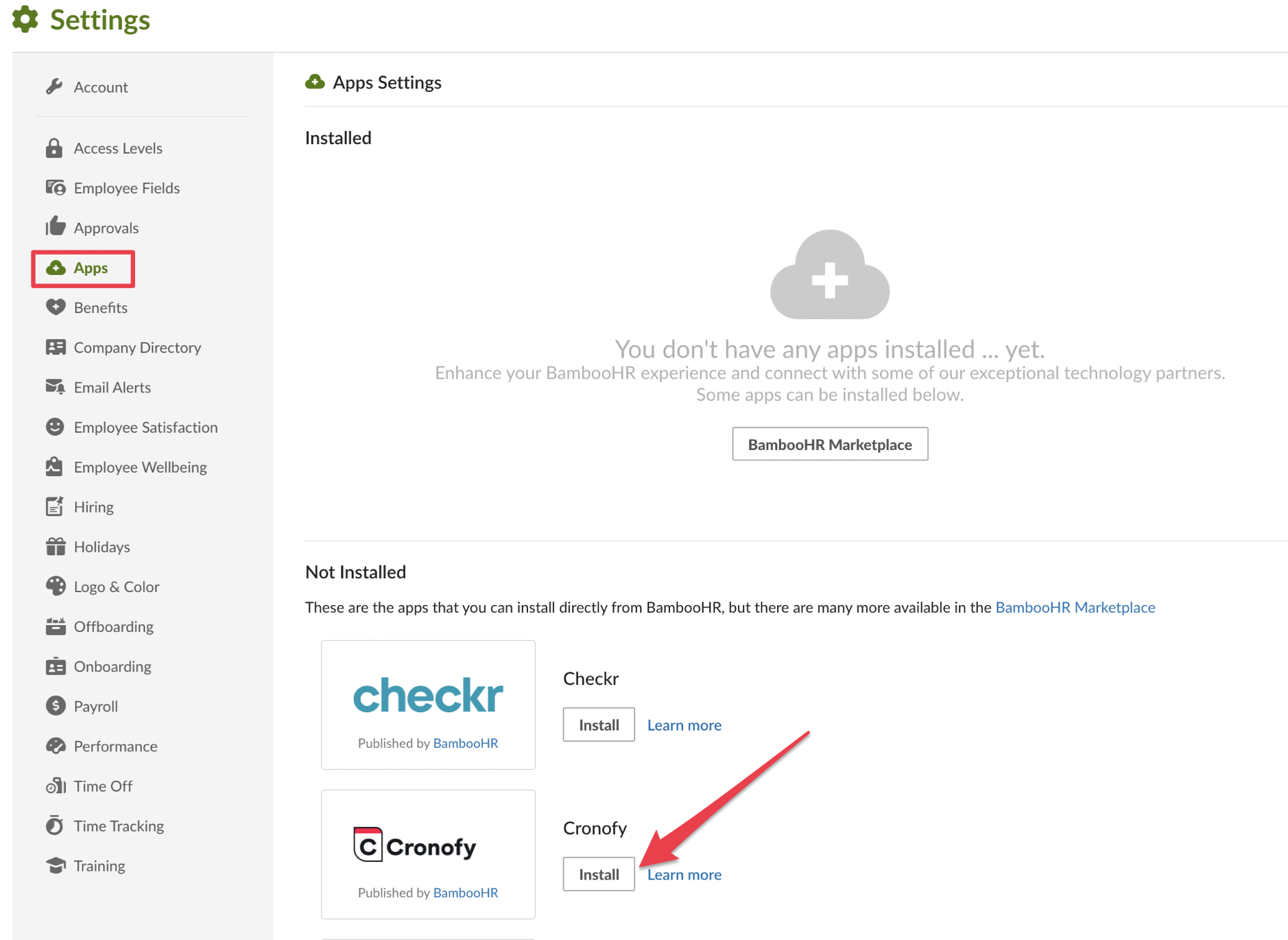
> **WARNING:** You need to be a BambooHR admin to access this page and install the app.
**Step 2 - Create your Organizational Unit in Cronofy.**
Your BambooHR admin will then be prompted to create an [Organizational Unit](/scheduler/set-up/admin-set-up/index.md) in Cronofy, when installing the Cronofy app.
This is so they can invite hiring managers and **sync their calendar availability, to allow any recruiter to share it in real-time** with candidates.
> **INFO:** Read more about how you can [auto-enrol your BambooHR users from your organization into Cronofy](/integrations/bamboohr/tenant-enrolment/index.md).
## Schedule an interview in BambooHR
> **INFO:** Anyone who can access the candidate record in BambooHR will be able to schedule interviews with Cronofy.
- Navigate to the "Candidates" tab under the "Hiring" page in BambooHR.
- Select a candidate and click on "**Schedule Interview**".

3. You will be prompted to log into Cronofy if you aren't already.
> **WARNING:** Before logging into your account, select the **correct data centre** or ask your admin to let you know if you are not sure.
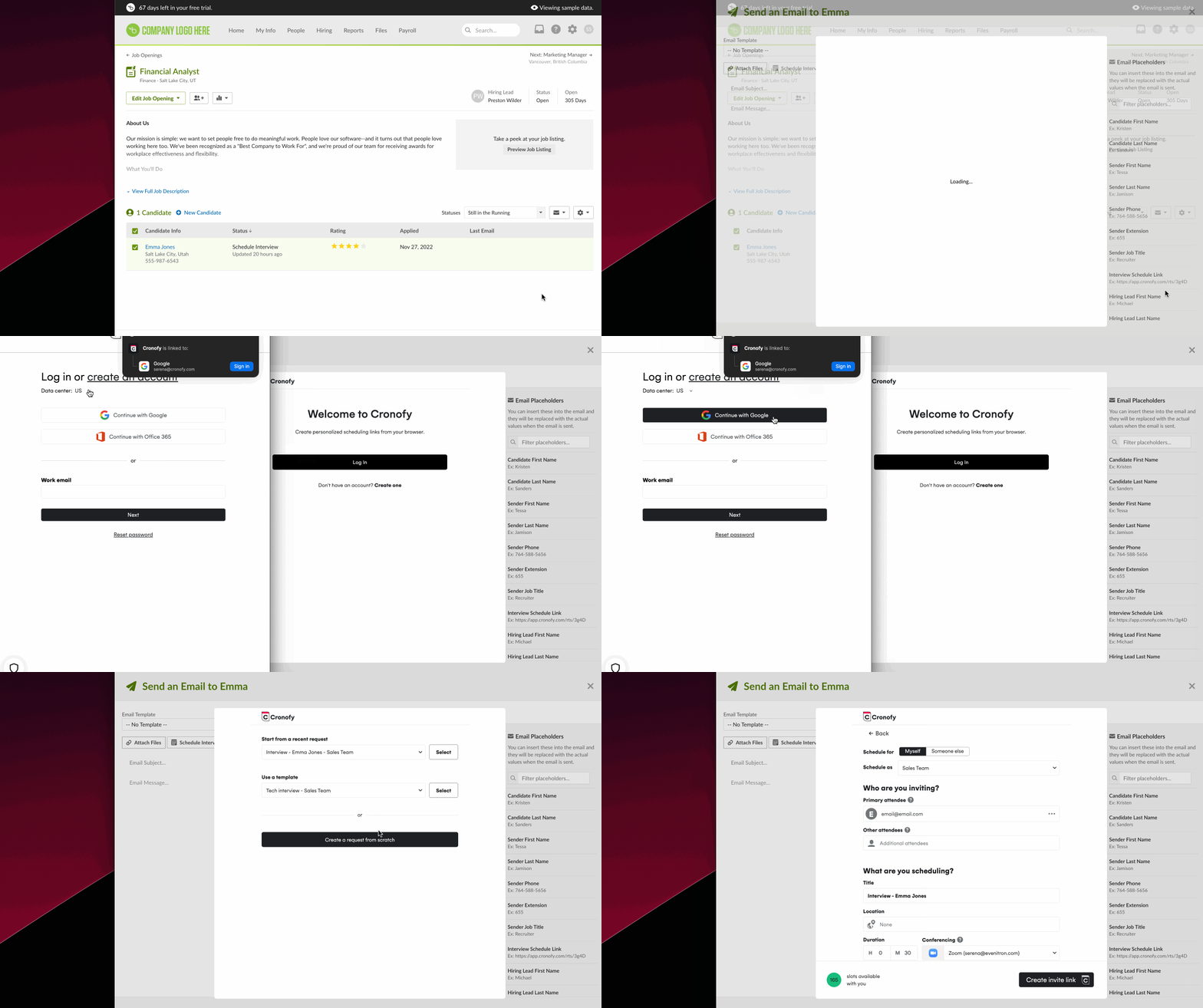
- Start scheduling!
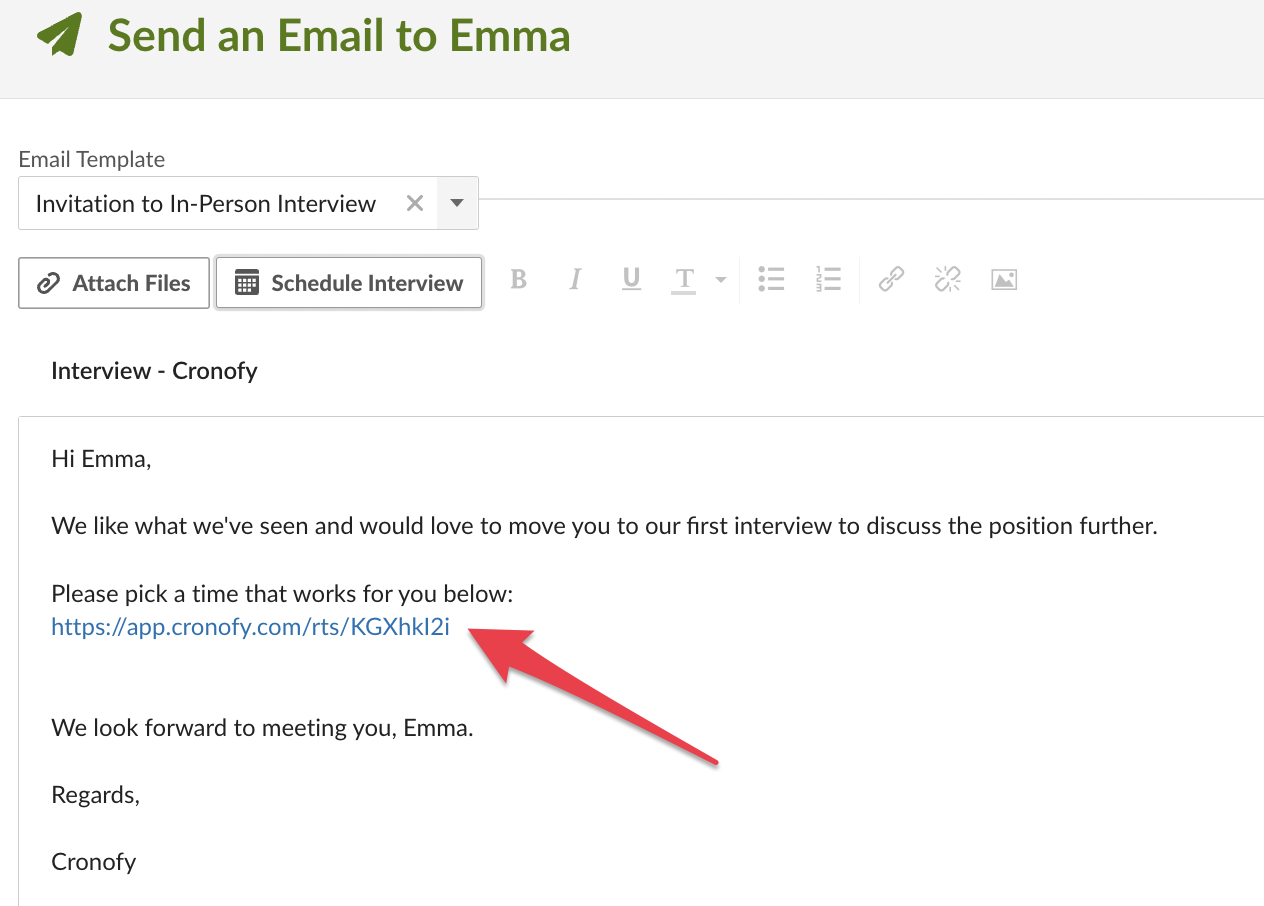
Once you have hit "**Create invite link**", the invite will be embedded in the email.
As soon as the candidate follows the link and chooses a time, the event will be added into the candidate's and interviewer's calendars.
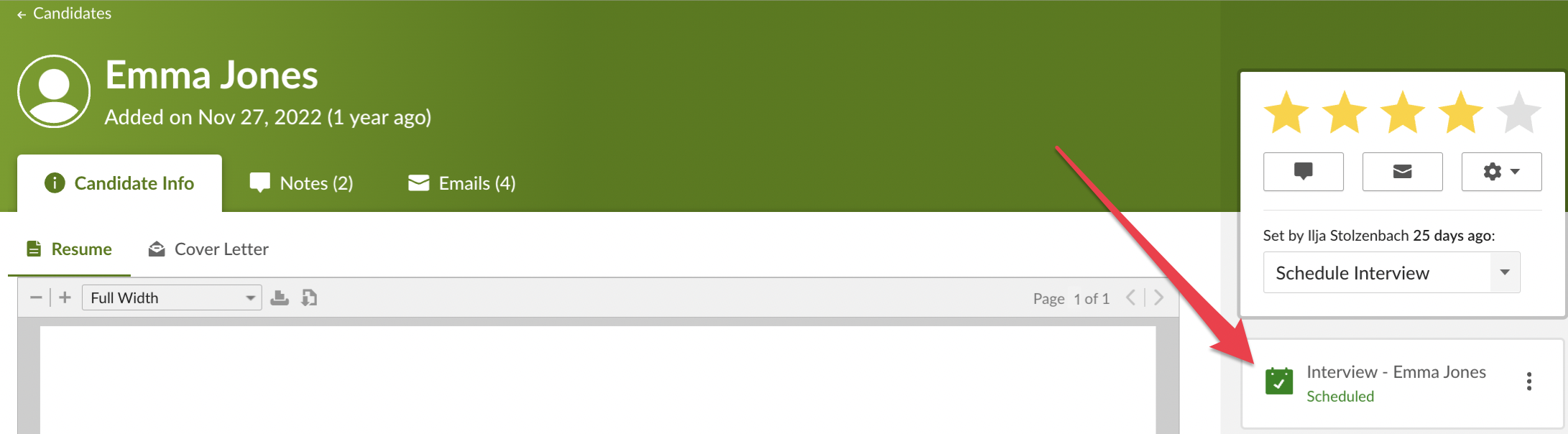
- Once the candidate has picked a time, the interview will show as "Scheduled" in BambooHR.
## How to reschedule or decline an interview
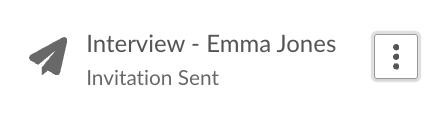
To reschedule an interview, head to the candidate profile in BambooHR and click on the three dots to "**Send New Invite**" via email.
The interview status will change to "Invitation Sent" and will be updated, once the candidate has picked a new time.
To cancel an interview, simply click on "**Cancel**".
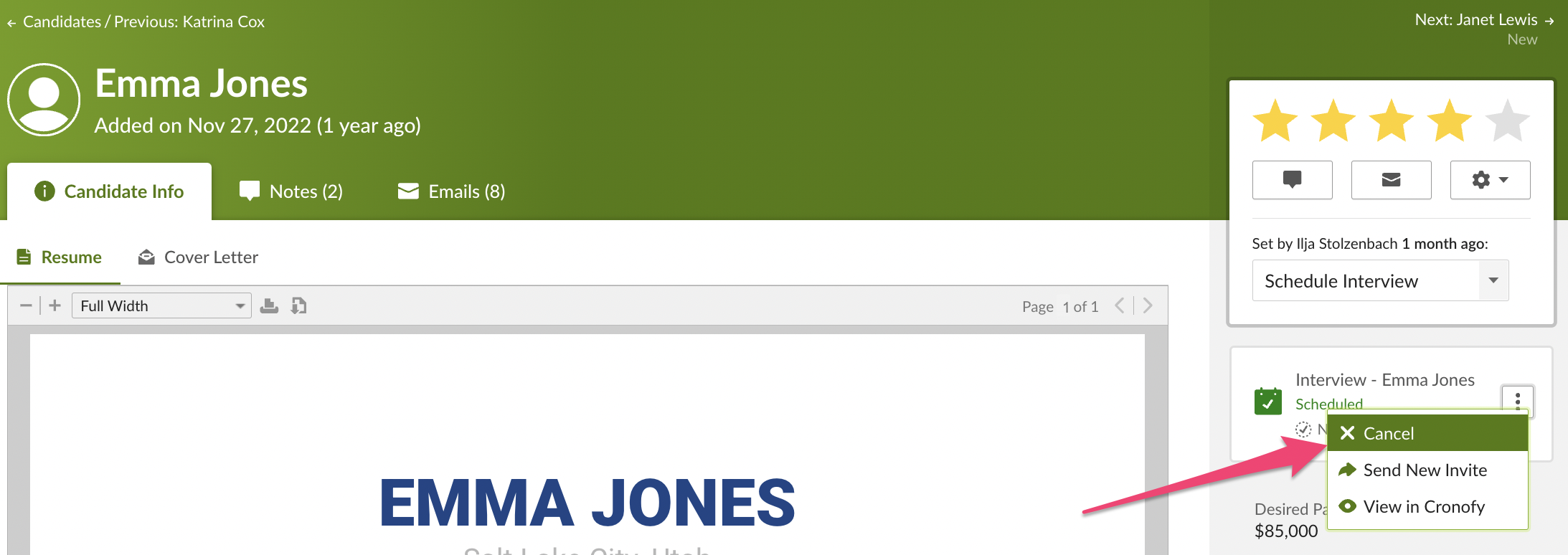
You can also access the invite in Cronofy by clicking on "**View in Cronofy**", should you need to access any other interview details.
## Reporting
You may want to have an overview of the status of your invites.
For example, you can filter your requests by "Pending" status in Cronofy, to chase candidates who have not picked a time yet.
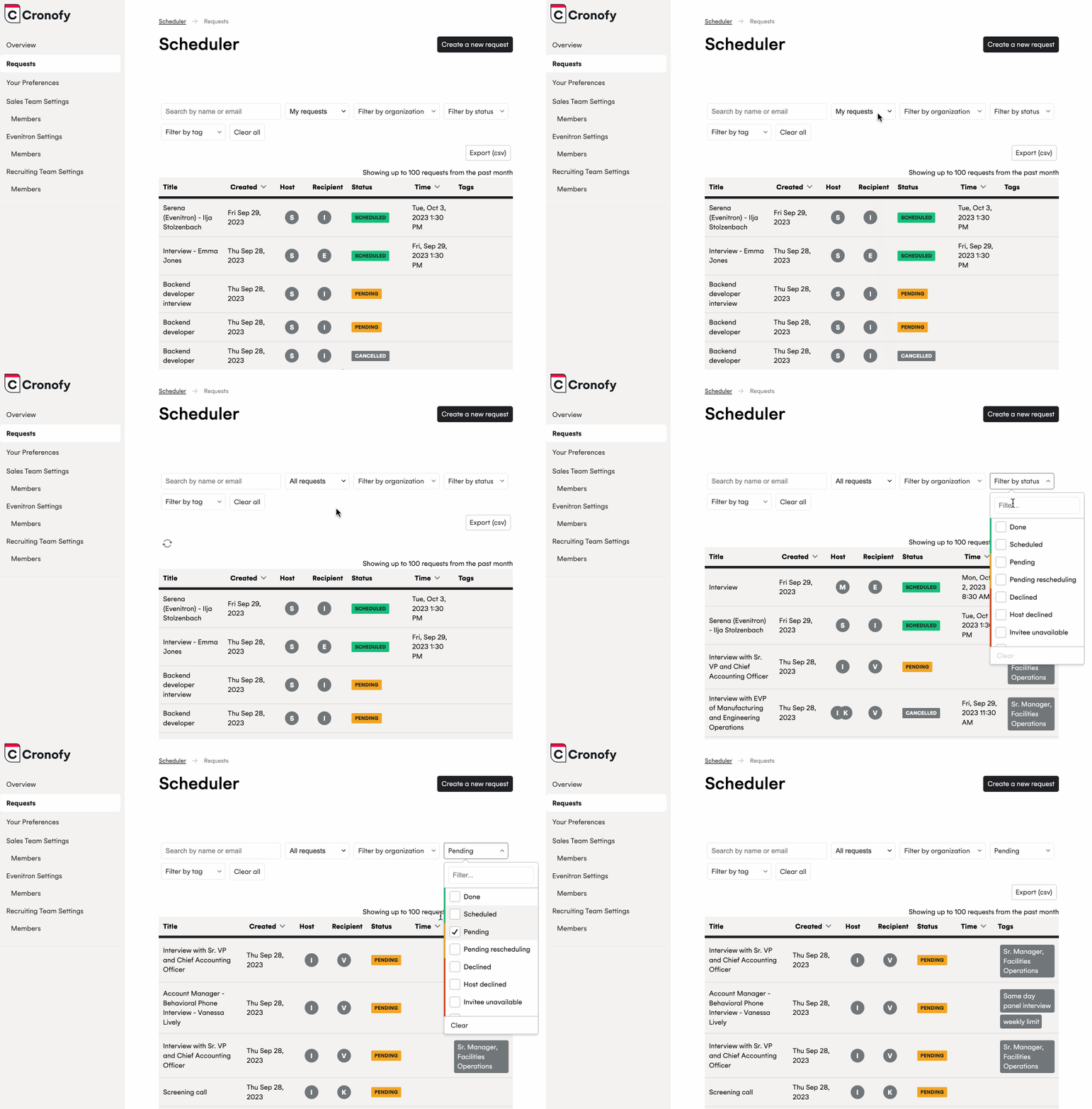
You can also [tag](/scheduler/tags/index.md) your requests to better identify to which projects, cohorts or role they refer to.
## Candidate experience
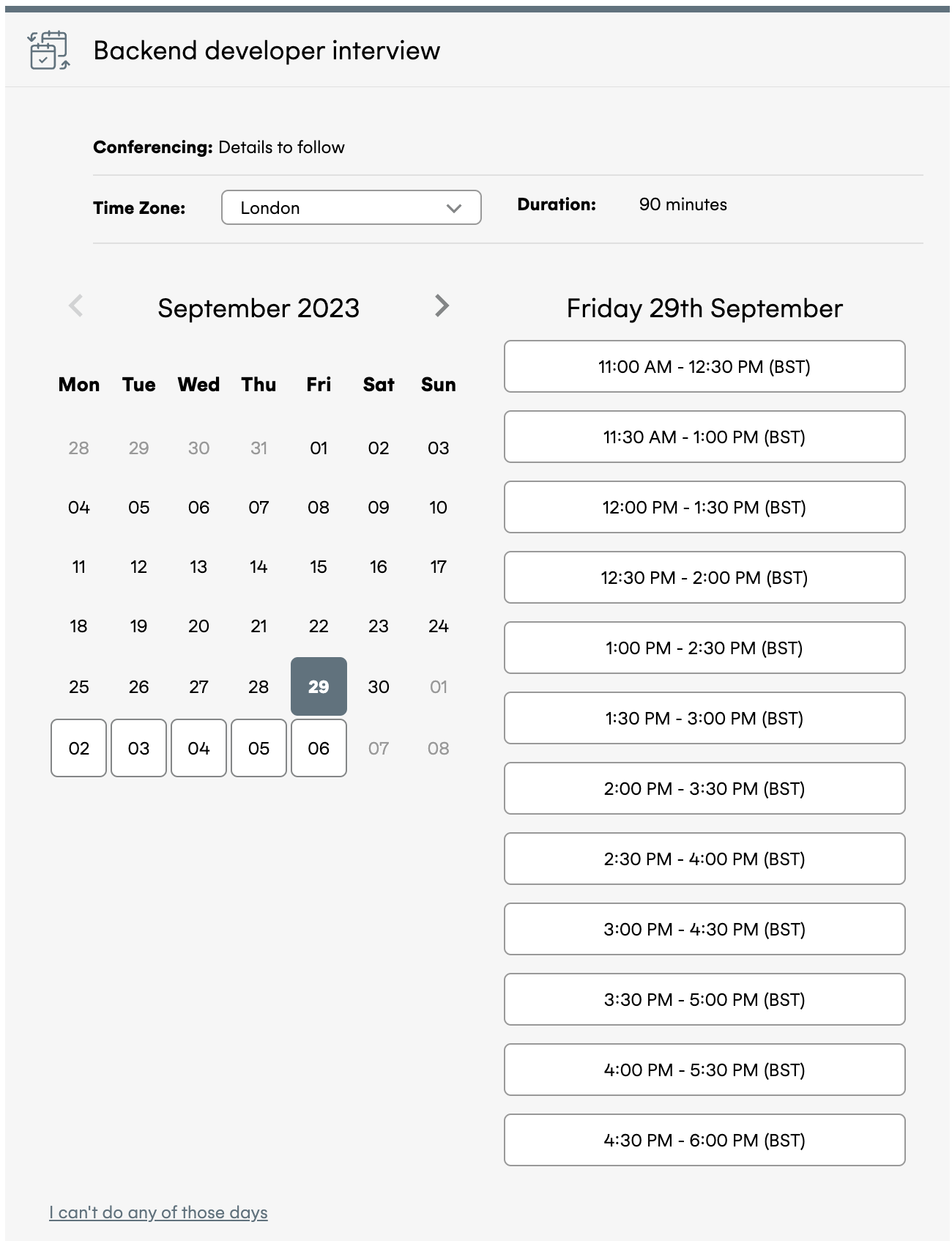
Once they click on the invite, candidates will be able to pick a time that suits them via the screen below, with times being displayed in their timezone.
---
[Read in HTML](/integrations/bamboohr/)
## In this section
- [Auto-enrol your BambooHR users from your organization into Cronofy](/integrations/bamboohr/tenant-enrolment/index.md) — How to automatically add your BambooHR users from your organisation into Cronofy without inviting them.