# Set Up My Organizational Unit
## What is an Organizational Unit?
An Organizational Unit (OU) represents an organization, company or team that wants to share their availability with one another. They act as separate entities, which means there is **no crossover of data between them**. Admins can manage users, assign roles and scheduling rules, whilst also customizing branding.
## Create multiple Organizational Units as sub-accounts.
> **WARNING:** User roles required: [Owner and Scheduler admin](/scheduler/invite-users/index.md)
##### How to create an Organizational Unit
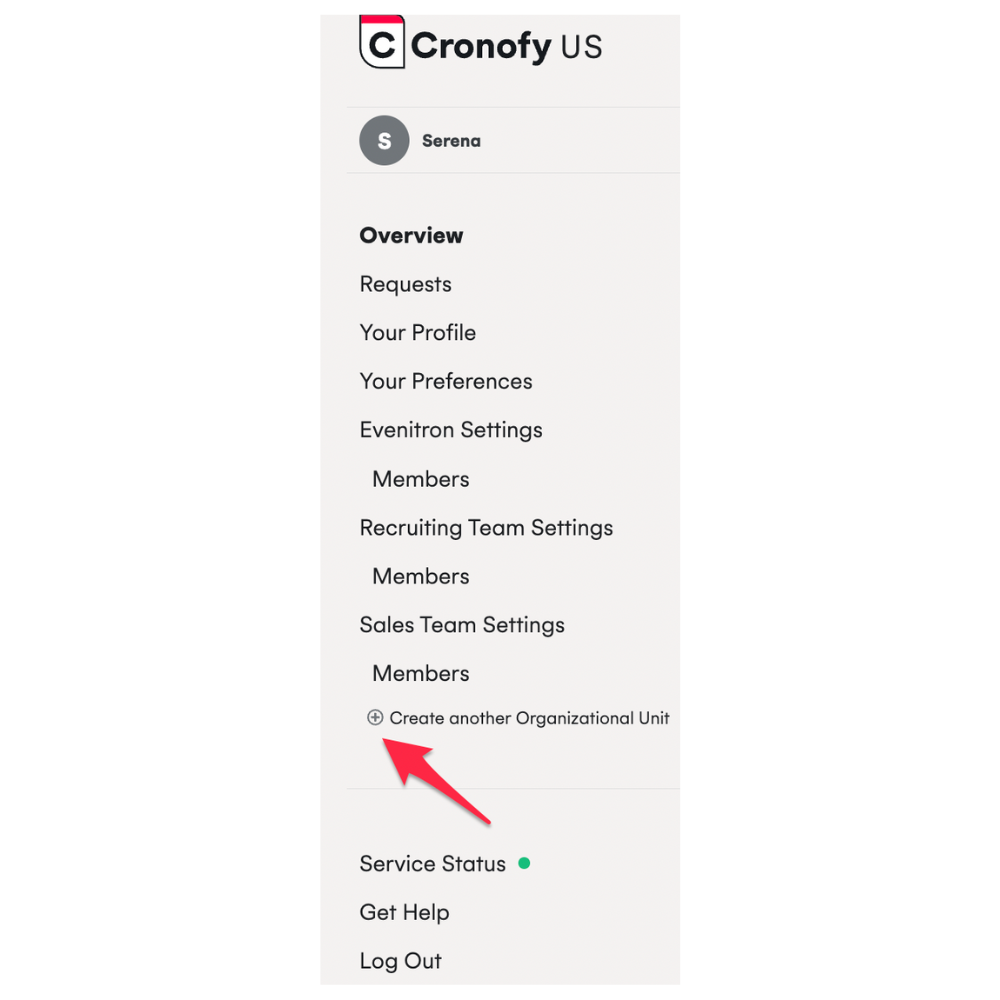
You can create multiple OUs as sub-accounts by simply clicking on "Create another Organizational Unit" in the left side navigation as shown below:
##### What are the benefits?
Generally speaking, they are helpful for **onboarding, managing groups of users and for reporting purposes**.
For example, you would want to create multiple OUs if:
- You schedule for different subsidiaries and need to set up respective branding.
- You need to onboard teams separately to manage different teams' scheduling policies. For instance, create different OUs for your recruiting and sales teams to ensure that they do not disrupt each other's scheduling workflows.
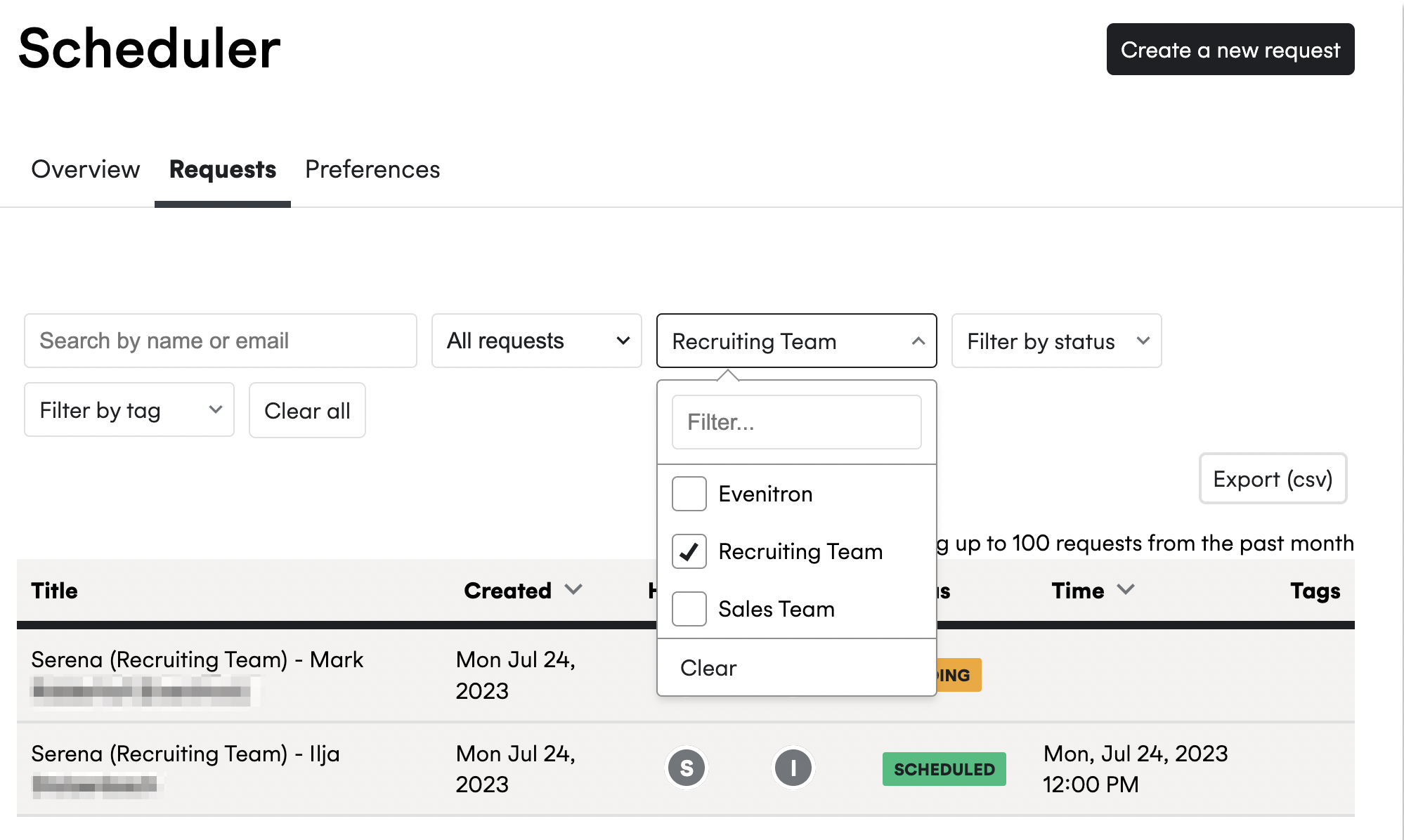
- You need to report on the scheduling performance of a specific team, using the "Filter by organisation":
Watch our tutorial video below for further information:
## Manage your Organizational Unit
> **WARNING:** User roles required: **Owner and Scheduler admin**
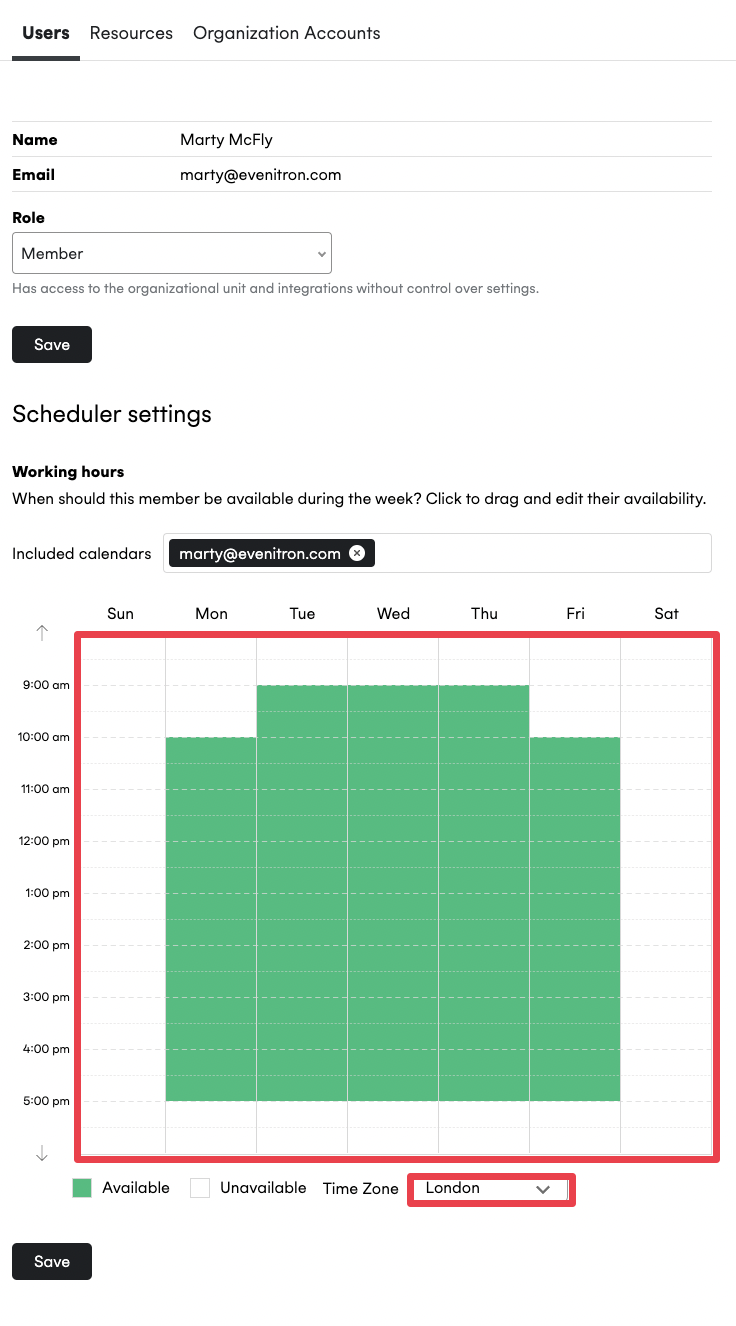
You can update **working hours and timezone** on behalf of your users.
To do this, visit your Organizational Unit Settings > Members > Users. Click on the user you would like to update the preferences, as shown below:
## Connect multiple organization calendars
> **WARNING:** User role required: **Owner**
You can connect your organization calendar via [**Enterprise Connect**](/scheduler/enterprise-onboarding/connecting-organization-calendars/index.md), which lets you sync your directory and provision accounts for users.
> **INFO:** We currently support:
- Google Workspace (Google Apps for Business)
- Microsoft Office 365
- Microsoft Exchange (all versions 2007 SP1 or later).
##### What are the benefits?
For example, if you have several subsidiaries, you may need to connect multiple organization calendars in Cronofy, if some users make use of Office 365 and others use Google Workspace.
Please watch the video below to see how to connect your organization calendar in Cronofy:
---
[Read in HTML](/scheduler/set-up/admin-set-up/)